What Is a Widget on a Website? Explained Simply
What is a widget on a website? It’s a small tool, like a search box or signup form, placed inside a page, not a standalone app. Compare common types.
In short
A website widget is a small, self-contained tool or interactive feature embedded in a web page, such as a search box, booking form, map, or chat panel. Choose widgets that solve a clear visitor need, keep them simple and accessible, and check that they work well on phones and fit your site’s design. Useful widgets can make key information and actions easier to reach, but too many can distract visitors, slow pages, or raise privacy concerns.
Think of the magnets on a kitchen fridge: a calendar, a takeout menu, a photo of the dog. Each one is small, does one job, and sits wherever you stuck it.
A website widget works the same way: a small, self-contained piece, like a search box or signup form, that you place on a page.
An app is a whole program you install and open, but a widget lives inside a page you already have. In this post, we’ll cover what widgets are, the common kinds, why they’re worth adding, and how to pick ones that match your site’s look.
What a Widget on a Website Is
Before you add extras, it helps to know what a widget is and where it lives.
Small embedded tools you can customize
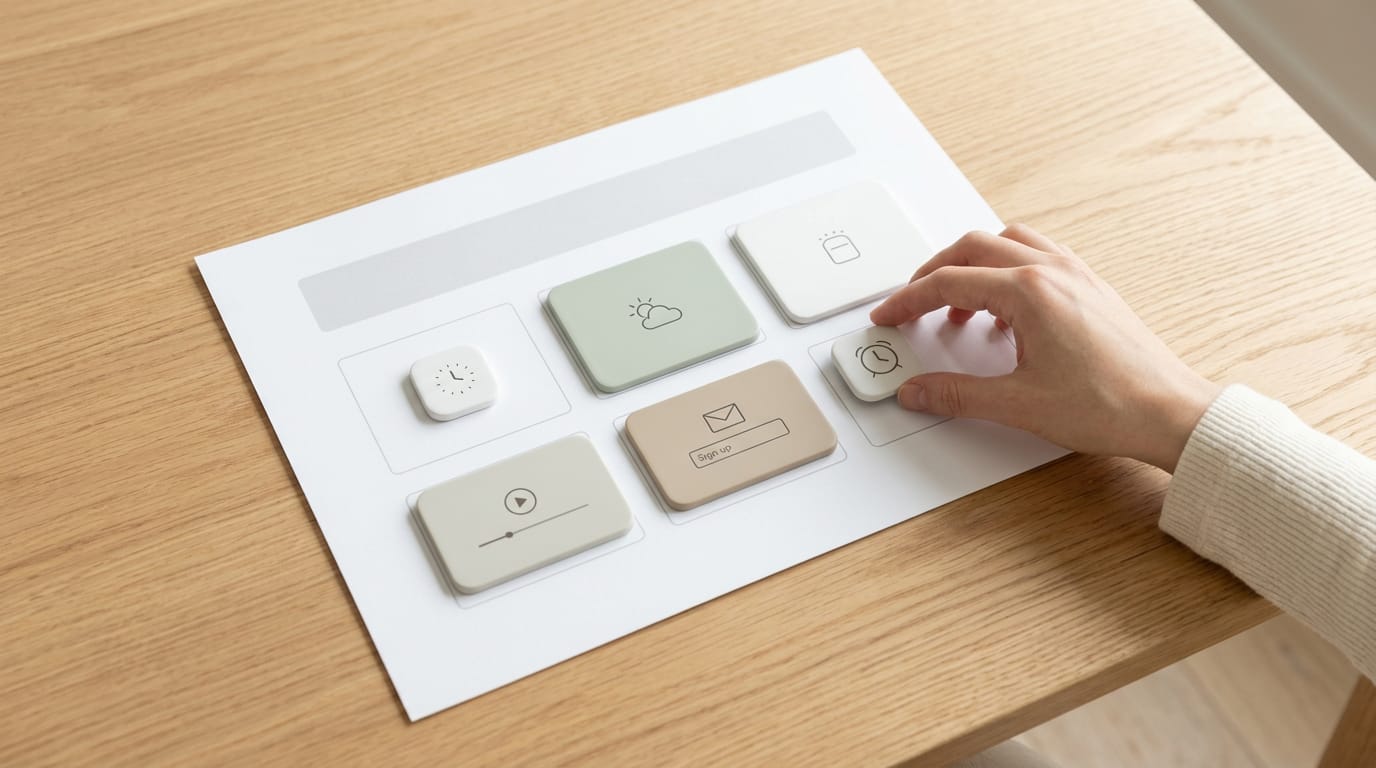
A widget is a small embedded application: a tool that sits inside a page. It’s usually a graphical or interactive element, like a clock or contact form, and most are customizable tools you can recolor to match your brand.
Some are informative (a weather box), others functional (a booking form).
So where is a widget? Usually in a sidebar down the side of a page or in the footer along the bottom. A café owner might put opening hours in the footer so customers always find them.
A built-in widget comes with your theme and already matches its look. A third-party widget comes from another company, and you usually add it by pasting in a short piece of code.
How widgets differ from web apps
A web app is a full program you run in your browser, like an online booking system. A widget is smaller: it’s a part of a page, while a web app is a destination in its own right.
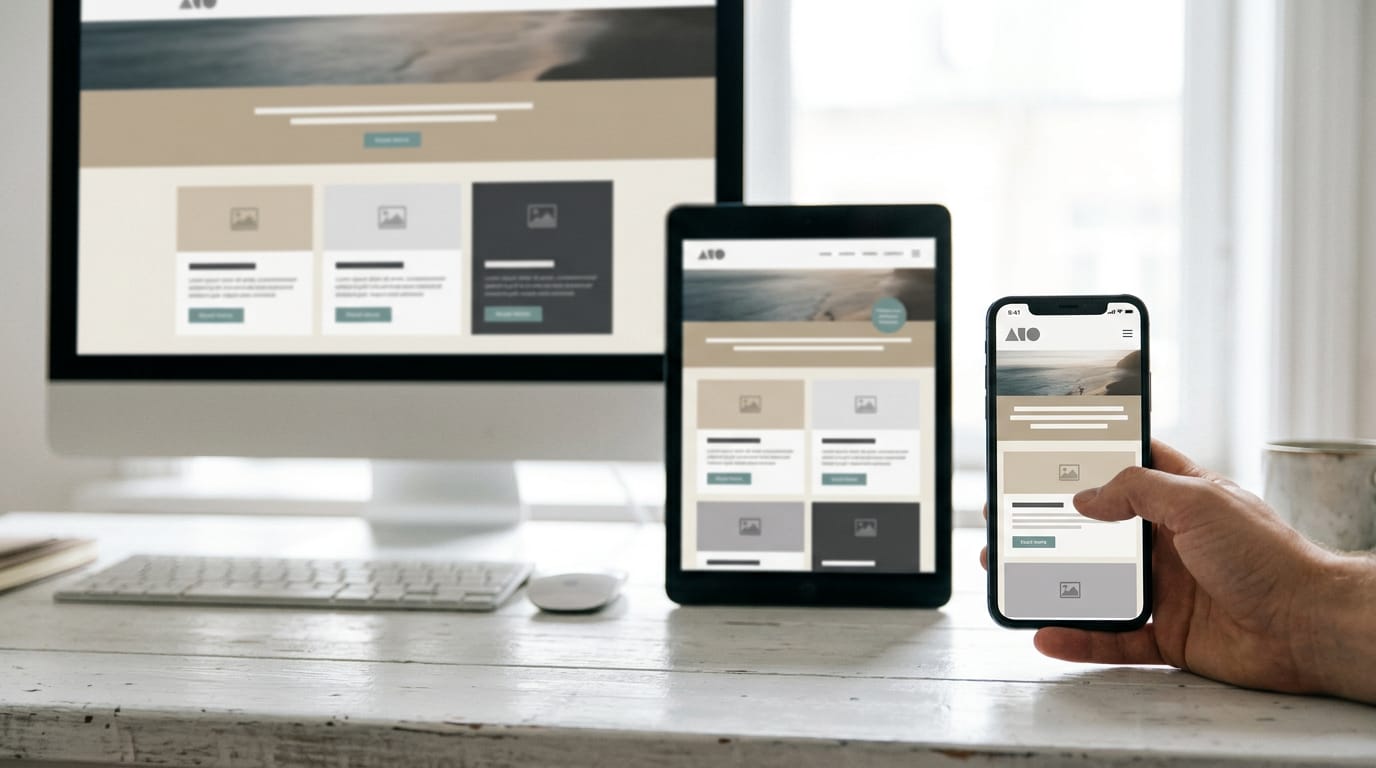
A sidebar widget that looks roomy on a desktop can get squeezed on a phone, so mobile-friendly design, which resizes to fit small screens, matters. Test it on your phone first.
How widgets started and why they grew
Early websites were mostly static pages that showed the same text to every visitor. As visitors began expecting more, widgets filled the gap, from cart counters on online shops (e-commerce) to help chat in customer support.
The shift was from pages that show to pages that respond. Visitors now want to click, not just read.
Common Kinds of Website Widgets
Most widgets fall into four families, each doing a different job. Sort them by what they do, not how they look, and you’ll choose better.
Chat and support widgets
- Live chat. A chat box where a real person answers visitors right away. An unanswered box does more harm than good.
- Chatbots. An automated chat that answers common questions. Live chat puts a person on the other end, while a chatbot puts a script there.
- Support and contact forms. A simple form that sends messages straight to your inbox, so visitors don’t need to copy your address.
Widgets that capture leads and hold attention
- Email signup forms. A small box asking for a name and email, usually in exchange for updates.
- Pop-ups and overlays. A box that appears on top of the page. Use them sparingly, since too many feel pushy.
- Quizzes, surveys, and games. Interactive pieces that invite visitors to answer questions or play along.
- Countdown timers. A clock ticking toward a sale’s end. Use one only for a real deadline, because a clock that resets each visit teaches readers to tune it out. Trust doesn’t reset.
Take a wedding photographer with a signup form on her portfolio. Every name is someone she can email next spring, and that’s a list she owns.

Practical widgets like calculators and maps
- Search widgets. A search box that helps visitors find a post or product without scrolling.
- Calculators. A small tool that does the math for visitors, like estimating a shipping cost.
- Maps and store locators. A map of your shop or service area, plus a list of locations so customers find the closest one.
- Booking widgets. A panel where visitors pick an open time and book it instead of emailing back and forth.
Picture a dog groomer whose booking widget shows open Saturday slots. Her inbox stops filling with ‘is Saturday free?’ messages. Less typing, more grooming.
Widgets for sharing, follows, and newsletters
- Social sharing and follow. Share buttons send a page to a visitor’s feed, while follow buttons link to your profile.
- Email marketing integration. Connects your signup form to your email tool, so new subscribers join your list automatically.
- User-generated content (UGC) in newsletters. Brings customer photos or reviews into the newsletter you send.
Why Widgets Are Worth Adding
A widget earns its spot when it does something useful for the visitor. Here’s what that looks like, with research where we have it.
How widgets keep visitors engaged
Widgets can keep people exploring:
- Quick access to features. A search box or booking button is one tap away, so visitors skip the menus.
- Interactivity and longer sessions. In one Scientific Reports study on infinite scrolling, sessions ran 18.5 minutes versus 12.3 minutes, and interactions rose from 28.7 to 45.2.
- Capturing attention. A timely prompt can catch a reader who’d otherwise drift off.
- Information without leaving the page. Opening hours or a shipping cutoff in a widget means no trip to another page.
Turning visitors into buyers with widgets
A widget can nudge visitors toward the next step, but the best ones guide rather than push. The goal is higher conversion rates, meaning more visitors completing the action you want.
A call to action (CTA) is the line that tells visitors what to do next, like ‘Book a consultation.’ A paper on calls to action examines how CTAs can improve the customer experience and boost conversions at the same time.
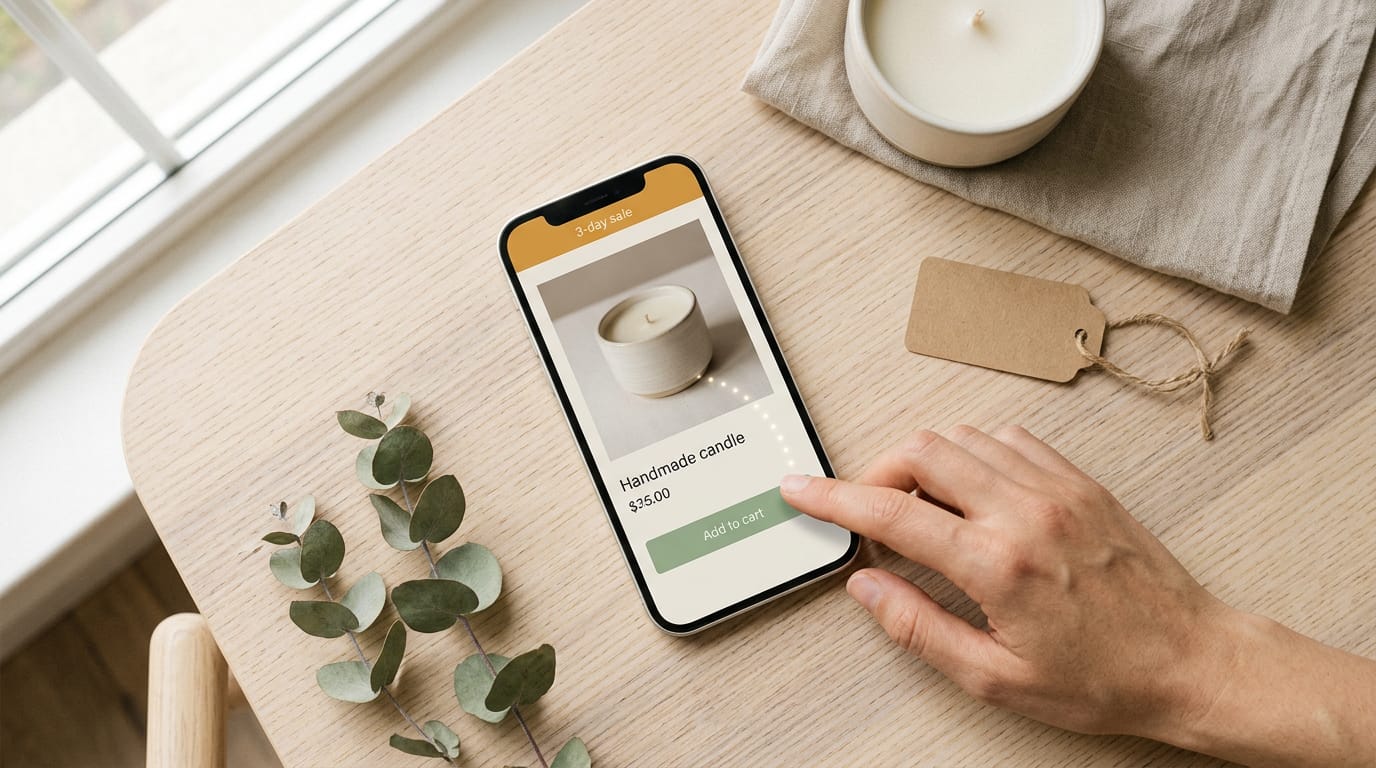
A widget can also highlight a promotion. Consider a candle maker’s three-day sale: a slim promo widget on every product page catches shoppers who land from a search. Only show a deadline that’s real.
Faster help and better customer feedback
A live chat widget lets visitors reach a person without leaving the page. A study of live support chat cites CRM.com’s definition: real-time messaging with a customer service agent.
- Instant help. A paper titled Connecting You With Real People at Real Time describes live chat as real-time help on demand.
- Reduced response times. Questions get answered in the same visit, not left in an inbox until tomorrow.
- Collecting feedback. A small prompt, like ‘Was this page helpful?’, lets visitors tell you what’s missing without writing an email.
Gathering emails, behavior data, and callbacks
A signup box offering a checklist for an email address builds your email list, so keep it optional. User behavior analytics shows what visitors click and where they stop, so you can see which widgets earn their place.
A callback request lets visitors leave a number and get a call later.
Consider a plumber who can’t answer mid-job. A callback widget takes the number, and the plumber rings back between jobs so the lead doesn’t go cold.
What the numbers say about widgets
Mobile is the number to watch. A study of Chrome browsing data found that desktops averaged 35.09% of Chrome browsing devices, with phones the most prevalent. Test on a phone first.
Before you repeat a chat statistic from a blog post, trace it to its source. The studies we can point to give no reliable chat figure, so live chat’s case rests on what it does for visitors, not on one number.
Using Widgets Well on Your Site
A widget works best when it earns its spot on the page.
Habits that make widgets work well
- Match goals and audience. Ask what it does for visitors, not just for you.
- Keep it simple and unobtrusive. One clear job per widget.
- Avoid pop-up overuse. Save pop-ups for moments that truly matter.
- Prominent placement. Put it where eyes naturally land, and don’t hide it.
- Clear, concise language. Short labels like “Ask us a question” work best.
Every widget can slow your page, and some share visitor data with a third party, so weigh those speed and privacy costs first.
For accessibility, check that it works by keyboard alone, its text is readable, and its buttons have labels screen readers (software that reads pages aloud) can announce. That’s a win for everyone.
Installing widgets and connecting them to tools
Can you make a website into a widget? Not in the usual sense. A widget is a small piece, like a chat box, that sits inside a page you already have. You add widgets to the pages that need them.
Many widgets install with one line of code, called an embed code. Copy it, paste it into your site, and you’re usually finished quickly.
Plenty also connect to tools like customer relationship management (CRM) software, so leads don’t slip through.
Widgets also suit landing pages (pages built around one action) and online shops, where they can help at checkout.
No code needed: a bakery owner drags a chat block from her site builder onto her contact page, so her phone stays free at the counter.

Making a widget match your site’s look
How much you can restyle depends on the widget’s developer. Some allow color and font changes, others don’t, so check the documentation (the provider’s setup guide) first.
Aim for the widget to look like part of your site, not a sticker on top.
Pick widgets whose default style fits your theme (the design template that sets fonts and colors). Match first, tweak second.
What the BoldDesk chat widget offers
- 24/7 support. Visitors can reach you at any hour.
- Multi-channel replies. Answers can go out through several channels (the ways customers reach you).
- Chat history and file sharing. You’ll see past chats and can exchange files, so nobody has to repeat themselves.
Widgets on Your Phone’s Home Screen
Ever glance at your phone and see the weather without opening a single app? That small box is a widget: a self-contained panel that shows information or a control right on your home screen.
Here’s what they typically show, and how Android and iOS handle them differently.
Examples of what phone widgets show
Most phone widgets fall into a few familiar groups:
- Time panels. A large clock, calendar or date card.
- Weather, health and steps. Local forecasts, plus step counts if your health app feeds them in.
- Currency rates and battery. Exchange rates, plus a meter showing how much charge is left.
- Wi-Fi and Bluetooth controls. Switches that turn wireless connections on or off without opening settings.
Consider a freelance designer who bills clients overseas. A currency widget lets her check the exchange rate before she sends a quote, without leaving her home screen.
That’s the whole idea: a widget is about glancing, not digging. Quick answer, back to work.
How Android and iOS widgets compare
Both systems offer widgets, but they differ in a few key ways:
- Downloadable widget apps. Beyond the built-in choices, you can often download widget apps that add extra layouts and styles.
- Android is more configurable. You have more say over what each widget shows and where it sits.
- iOS has limited interactivity. iPhone widgets lean toward showing information, so there’s less you can tap to act on.
If you mostly want a quick glance, that limit may not bother you at all. Whichever phone you carry, the best widget is the one you actually glance at.
Now you know what a widget is, where it sits, and how it differs from an app. That clears up most of the confusion before you ever add one. The kinds you choose, and how well they fit, shape how the whole page feels to a visitor.
Match each widget to your site’s fonts and colors so it looks like it belongs there. A widget that clashes with the rest of the page pulls attention for the wrong reasons.
Small pieces, chosen with care, make the whole site feel finished.
References
- Modeling user attention continuity and interaction mechanisms in continuous interfaces of digital platforms — nature.com (2026)
- Through the Lens of Google CrUX: Dissecting Web Browsing Experience Across Devices and Countries — doi.org (2023)
- How to leverage calls to action to simultaneously improve user experience and conversions — doi.org (2019)
- Applying The Technology Acceptance And Service Quality Models To Live Customer Support Chat For E-Commerce Websites — doi.org (2013)
- Connecting You With Real People at Real Time — corescholar.libraries.wright.edu (2007)
Questions
What is the difference between an app and a widget?
An app is a complete program that you install and open, while a widget is a smaller panel or tool that sits within a page or phone home screen. Widgets usually offer one focused function, such as showing weather or providing a search box.
Where is a widget?
On a website, a widget usually appears in a page’s sidebar or footer, though it can be placed wherever it’s useful. On a phone, a widget sits on the home screen and shows information or controls without opening the app.
Can you make a website into a widget?
You generally don’t turn an entire website into a widget. Instead, you add a small feature, such as a chat box, signup form, or booking panel, to the website by placing it on a page or embedding its code.
Sources
- How to leverage calls to action to simultaneously improve user experience and conversions, doi.org,
- Applying The Technology Acceptance And Service Quality Models To Live Customer Support Chat For E-Commerce Websites, doi.org,
- Through the Lens of Google CrUX: Dissecting Web Browsing Experience Across Devices and Countries, doi.org,
- Modeling user attention continuity and interaction mechanisms in continuous interfaces of digital platforms | Scientific Reports, nature.com,
- Connecting You With Real People at Real Time, corescholar.libraries.wright.edu,