Create a Website to Sell Products: Complete Guide
Create a website to sell products by choosing its look before its platform, then plan payments, shipping, security, and startup costs with confidence.

In short
Creating a website to sell products means setting up an online store with product pages, a cart, checkout, and payment processing. Choose the look you want first, then pick a platform that supports your products, payments, shipping, and budget; add clear listings and keep stock in sync. A simple store with a working checkout can go live quickly, then improve as customers show you what they need.
Imagine opening a little shop. You’d probably pick the paint, the lighting, and the shelving before you ever chose the building. Building an online store works the same way: the look you want should come first, and the platform should follow from it.
A platform is the software that runs your store, handling product pages, carts, and checkout. A theme is the design layer that controls how everything looks.
Here, we’ll walk through every step, from picking a look and platform to taking payments, shipping orders, and figuring out what it really costs.
Create a Website to Sell Products
Selling online comes down to a few decisions, made in order.
Set up your store step by step
- Pick your products and name. List what you’ll sell, then choose a short, easy name.
- Choose a plan or sign up. Compare plans by the features you need.
- Customize, add products, and publish. Pick a look, upload products, then go live.
Once you publish, your store can be live in minutes, so most of the work happens before launch.
So what’s the easiest website to sell stuff on? No single platform wins for everyone, but the easiest is usually the one that keeps your store, payments, and product pages in one place.
Can ChatGPT actually create a website?
Partly. ChatGPT can draft your business description, homepage copy, and product descriptions.
Some builders can generate a first draft of your site from a description of your business, and artificial intelligence (AI) image tools can help tidy up product photos. Built-in AI assistants like Sidekick, Flex, and Airo sit inside some builders.
Can ChatGPT build a store? Not on its own. It won’t host your site (keep it online), take payments, or set up shipping. Use it for the words and a platform for the store.
Pick a template and theme that fits
A theme controls how your store looks, including colors, fonts, and layout. Some templates are built for a specific industry, and free themes are often enough for a first store, while paid ones add more layout options.
Check the preview on a phone, since mobile-ready designs matter for shoppers who browse there. Then tweak colors and fonts to match your brand.
Say you sell handmade candles. A wide product grid shows off your jars, and a visible cart keeps shoppers from getting lost before checkout.
Pick the look first, then find a platform that supports it.
Edit your site without writing code
You don’t need to write code to run a store. Most builders let you rearrange sections and layouts, swap images, and change text by clicking on it.
Later, if you want more control, you can edit CSS (Cascading Style Sheets, the style rules for colors and fonts) or Liquid (a template language). Skip both at the start.
A bakery owner can change Saturday hours and swap in a new cake photo minutes after publishing. No developer, no waiting.
What a website builder actually does
A website builder is a tool that lets you create and run a site without hand-coding it. An ecommerce site adds what takes orders: product pages, a cart, checkout, and payments.
A theme shapes how your store looks. The builder decides what it can do.
Look for these:
- Payments. Does it accept the methods your customers are likely to use?
- Shipping. Can you set rates for what you sell?
- Product type. Physical goods need shipping tools, digital goods need file delivery, and services may need booking.
- Renewal price. Check what you’ll pay after the first year, not just the introductory rate.
Managing Your Products and Store
Once you’re live, keeping products, stock, and sales in step becomes the daily job.
Add products and show them well
Before you commit, check that your platform allows unlimited products.
Each listing needs clear photos, a plain description, and any variations. Group items into categories and link related items.
If you already sell in person, import your list from your point-of-sale (POS) system, the register software, so you don’t retype everything.
Photograph products simply and consistently: same plain background, same light. Shoppers compare listings side by side, so aim for consistency rather than perfection.
Picture a candle maker whose photos share one white backdrop and window light, so her shop looks like one brand.

Track stock and avoid overselling
Set stock levels for each item so the website count matches your shelf.
If you sell in more than one channel (any place you sell), pick a system that syncs counts across them, or you’ll sell the same last jar twice. Nobody enjoys that.
Overselling means taking an order for something you can’t ship. The fix is one shared count, not several separate ones.
Think of a jam maker who sells at a market and online. When the last jar sells at the stall, the site marks it sold out, so nobody orders a jar that’s gone.
Sell more than just physical goods
Your store can sell more than boxes. Check whether your platform supports these:
- Digital downloads: files like printables or e-books, received after payment with nothing to ship.
- Subscriptions and gift cards: recurring orders and prepaid balances.
- Services and bookings: appointments customers reserve online.
- Invoicing: bills for custom work or one-time jobs.
Imagine a freelance photographer who sells prints, an editing guide, and session bookings from one store. Clients pay in one place, not three.
Sell online and in person together
If you sell at a market or shop counter too, you’ll want unified online and in-store sales. Three tools make that work:
- POS integration: linking your online store to your register so both update together.
- Card readers: small devices that take payment in person.
- QR (quick-response) code: a square code shoppers scan with a phone to open a product page.
Consider a journal maker at a craft fair who takes card payments on the spot, and her online orders draw from the same stock. Her Monday count matches her shelf.
Accepting Payments and Shipping Orders
Once a shopper picks something, the sale depends on getting paid and getting the order to their door.
Take payments with Stripe, PayPal, Apple Pay
Most platforms offer an integrated payment system, which links your checkout to a payment processor (the service that moves card money into your bank account). Common options include Stripe, PayPal, and Apple Pay.
Every card payment carries a per-transaction fee, so look at what each sale costs you, not just the headline plan price.
A secure checkout protects card details, which is what gets shoppers to place the order. Picture a potter selling mugs from a home studio: a gift buyer on their phone can pay with Apple Pay in a few taps, so the sale doesn’t stall.
Ship with UPS, FedEx, or local pickup
Some platforms connect to carriers like UPS (United Parcel Service) and FedEx, so you can print labels from the order page and check discounted rates. You’ll also choose how to charge:
- Flat-rate shipping charges one price per order, which keeps checkout simple.
- Weight-based rates charge by how heavy the package is, so bulkier orders cost more.
- Local delivery and pickup skips carrier fees on nearby orders.
Automatic taxes and a smoother checkout
Some platforms work out sales tax automatically, so you’re not doing it by hand.
Aim for a checkout that feels easy, not flashy: fewer steps and no surprise costs.
Let shoppers buy without an account, or offer optional ones so repeat buyers can reorder.
Test checkout on your own phone before launch, because a clumsy one on a small screen can cost you sales. Run a test order yourself.
Your Domain, Hosting, and Site Security
Your store needs an address, a home online, and a lock on the door. Here’s what to check for each.
Choose a domain name for your brand
Your domain name is the web address shoppers type, like yourshop.com. Buy one through your platform or connect one you already own.
According to a comparison of website builders, a custom domain may have a registration cost unless a plan or promotion includes it, so check for a free domain before you pay.
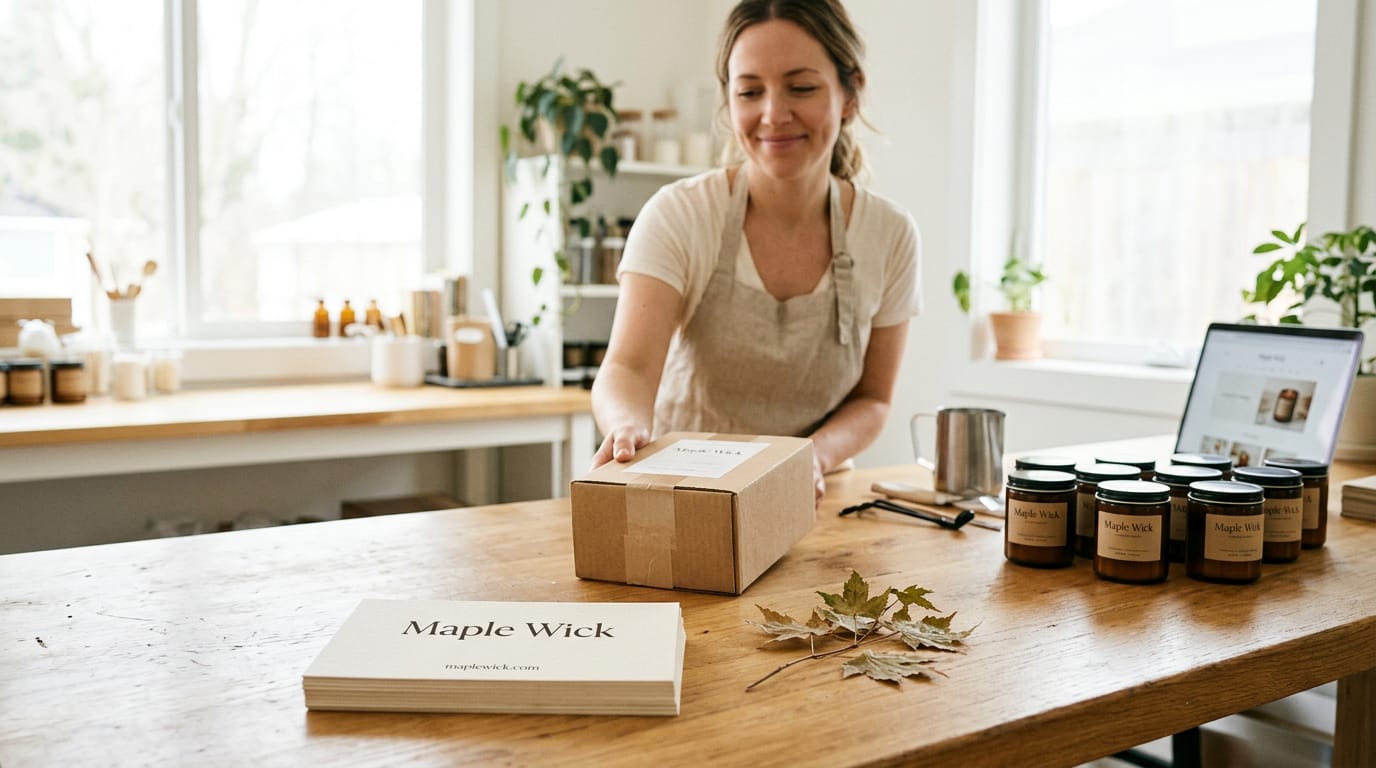
Think of a candle maker whose shop is called Maple Wick. Her domain matches that name, so her order emails and business cards point to one place. Choose a name people can spell rather than one that’s merely clever.
Hosting that comes with your plan
Hosting is where your store’s files live online. It’s bundled into your plan at no extra cost, so you won’t need a separate host.
Bandwidth is the data your site sends visitors. Unlimited bandwidth means no cap, so a busy sale weekend shouldn’t slow you down.
Servers are the computers that deliver your pages. Fast global ones load pages quickly for shoppers wherever they are, keeping them browsing rather than leaving.
Keep your site safe and compliant
A free SSL certificate (short for Secure Sockets Layer) encrypts what shoppers send you and puts the padlock in the address bar. Shoppers look for that padlock. Don’t skip it.
PCI compliance (short for Payment Card Industry) means following the security standards for handling card payments. Ask any platform whether its checkout meets them.
A DDoS (distributed denial-of-service) attack floods your site with traffic until it goes offline. Firewalls filter suspicious traffic before it reaches your store. Protection like this keeps your shop running for real customers.
Getting Customers and Growing Sales
A store with no visitors won’t sell much. Here’s how to get found, sell beyond your site, and bring customers back:
Get found in search with built-in tools
Many store builders include tools for search engine optimization (SEO), which helps search engines understand your pages. Start with the title tag (the headline shoppers see in results) and the meta description (the summary beneath it).
For example, a potter might write ‘Handmade Stoneware Mugs’ rather than ‘Welcome to Our Shop.’
A sitemap is a file listing your pages so search engines can find them. Your platform may create one for you.
Many platforms also offer artificial intelligence (AI) helpers that draft product descriptions and SEO copy. Treat each draft as a starting point and add your real materials and sizes.
AI assistants can recommend products too, so spell out what each item is, what it costs and what it’s made of. Complete beats clever.
Sell on social media and marketplaces
The question isn’t whether to sell on social media but where your customers already spend their time:
- Facebook and Instagram let you tag products in posts that link to your store.
- TikTok suits short videos that show a product in use.
- Google Shopping listings show your products in Google’s shopping results.
Shoppable social pages turn your posts into a mini storefront. A local bakery might post Saturday’s sourdough with a link to order, so followers don’t have to hunt for the shop.
Run emails, loyalty programs, and flash sales
Email and text campaigns keep people coming back. Email suits newsletters, while texts work for short, timely notes sent only to people who’ve said yes.
Loyalty programs reward repeat buyers with points, discounts or early access. The goal is regulars rather than one-time shoppers.
Gift cards let a customer buy a balance for someone else. A freelance photographer might sell them each December, and the recipient may book their first session.
Flash sales are short, time-limited discounts, and pop-ups can announce them or invite visitors to join your list. Use both sparingly, and keep the deadline real.
Publish blog posts and other content
A built-in blog lets you publish articles inside your store, such as a how-to guide. AI-written posts give you a rough draft, so fact-check it and rewrite it in your own voice.
Look for scheduling and draft saving so you can plan ahead and refresh older posts. A retired teacher selling handmade bookmarks might draft a gift guide on Sunday, schedule it for Tuesday and update it when new designs arrive.
Connect apps and tools to your store
Apps and extensions add features your platform doesn’t include. A third-party connector links your store to another service, such as shipping software.
Connect accounting software so sales sync without retyping, and link your email tool so new customers join your list. A candle maker who does both spends her evenings pouring wax, not copying numbers.

How Much Does It Cost to Start Selling?
Setting up a store can involve a platform subscription, domain registration, and transaction fees, which are charges some platforms take from each sale.
A study on selecting an e-commerce platform makes the same point, so budget for several costs, not one price.
Start free, no credit card needed
Some builders let you start before paying to publish. A comparison of website builders lists a $0-a-month Wix plan without the option to choose your own domain name.
- Free forever plan. A free tier can stay free for good, but with limits like the domain one above.
- Free trial lengths. These vary, so check the pricing page.
- Pay only when publishing. Build first, pay at launch.
- No credit card required. You can usually start without card details.
Take a candle maker who builds her draft store for free and pays only when she’s ready to publish. Test first, pay later.
Monthly plans and what each sale costs
Paid plans come in monthly subscription tiers, and higher tiers usually charge lower transaction fees per sale. Larger stores can ask for custom enterprise pricing tailored to their needs. Theme costs also add up over the years.
How it compares to Shopify and Wix
Shopify and Wix price differently, so compare the total you’ll pay, not the headline price. A study on selecting an e-commerce platform says Shopify may charge transaction fees, depending on your plan and payment method.
With Wix, check whether your tier lets you pick your own domain.
Compare these three:
- Trial length. How many free days you get before paying.
- Fee per sale. The transaction fee on the plan you’d buy.
- Theme cost. Whether the look is one-time or recurring.
Getting Support and Trusting the Platform
Support matters most when something breaks the night before launch. Here’s what we’d check.
Round-the-clock help and expert onboarding
Most platforms advertise 24/7 support. Check which channels are included, like chat or phone. Many also offer an artificial intelligence (AI) assistant for quick questions.
Think of a candle maker building her shop on a Sunday night before a holiday sale. Her payment button vanishes, and a quick chat gets her sorted before bed.
For bigger jobs, pay hired specialists to build or fix your store, or book an expert onboarding session. The question isn’t whether help exists, but how fast you’ll get it.
Real seller stories and revenue gains
Seller stories only help when the seller resembles you. A hobby jewelry maker and a furniture shop face very different problems.
Trustpilot ratings, the star scores on a public review site, show how customers feel overall. Skim recent reviews for complaints that repeat.
You’ll also see revenue increase stats. Ask who was included and what period it covers. Treat them as a question, not an answer.
Keep ownership of your data and code
Data ownership means your products, orders, and customer details belong to you. Confirm you can take them with you before you sign up. Three things to check:
- Own your data. Download your products, orders, and customer details at any time.
- Export tools. Look for a button that saves everything as a file you can use elsewhere.
- Download your code. If you customize the look, make sure you can get the theme files.
Picture a stationery seller with years of listings and orders. If she can’t export them, switching platforms means starting over. Ownership keeps the choice in your hands.
Selling online comes down to a few connected choices. Pick a look that fits what you sell, choose a platform that supports it, then make sure payments, shipping, and costs line up with your plans.
Get those in order, and your store will feel like yours from the first visit.
You don’t need every detail perfect on day one. Launch with one clear product, one working checkout, and one honest price breakdown, then refine as real customers show you what they need. Start with the look, and let it lead you to the right platform.
References
- Comparison of ADI Website Builders — theseus.fi (2023)
- Strategic Considerations for Small Businesses: Selecting the Optimal E-commerce Platform — doi.org (2024)
Questions
What is the easiest website to sell stuff on?
There’s no single easiest website for everyone. For many sellers, the easiest option is an ecommerce platform that keeps product pages, payments, and checkout together and lets you build without coding.
How much does it cost to set up a website to sell products?
Costs vary by platform and features. Budget for a monthly plan, possible domain registration, transaction fees on sales, and any paid theme; hosting is often included in the plan. Some builders let you create a store for free but require payment to publish or use a custom domain.
Can ChatGPT actually create a website?
ChatGPT can help draft your business description, homepage copy, and product descriptions, but it can’t create and run a store on its own. You’ll need a website platform to host the site, accept payments, and set up shipping.