How to choose a color palette for your website
Pick a background, a text color and one accent from what your business already looks like, check each pair for contrast, then set them once in your theme.

In short
Start with three colors, each with one job: a background, a text color and one accent for buttons and links, taken from what your business already looks like. Check every text color against its background for WCAG’s 4.5:1 minimum, then set the palette once in your theme so it applies everywhere.
Choose three colors and give each one a job: a background, a text color, and one accent for the things you want clicked, such as buttons and links. Take them from what your business already looks like (the logo, the sign, your photos), check every text color against its background for WCAG’s 4.5:1 contrast minimum, and set the palette once in your theme’s color settings rather than block by block. Add one or two quiet extras for section backgrounds and borders, and you have a palette that suits the business and keeps every line readable.
A palette is a few colors with jobs
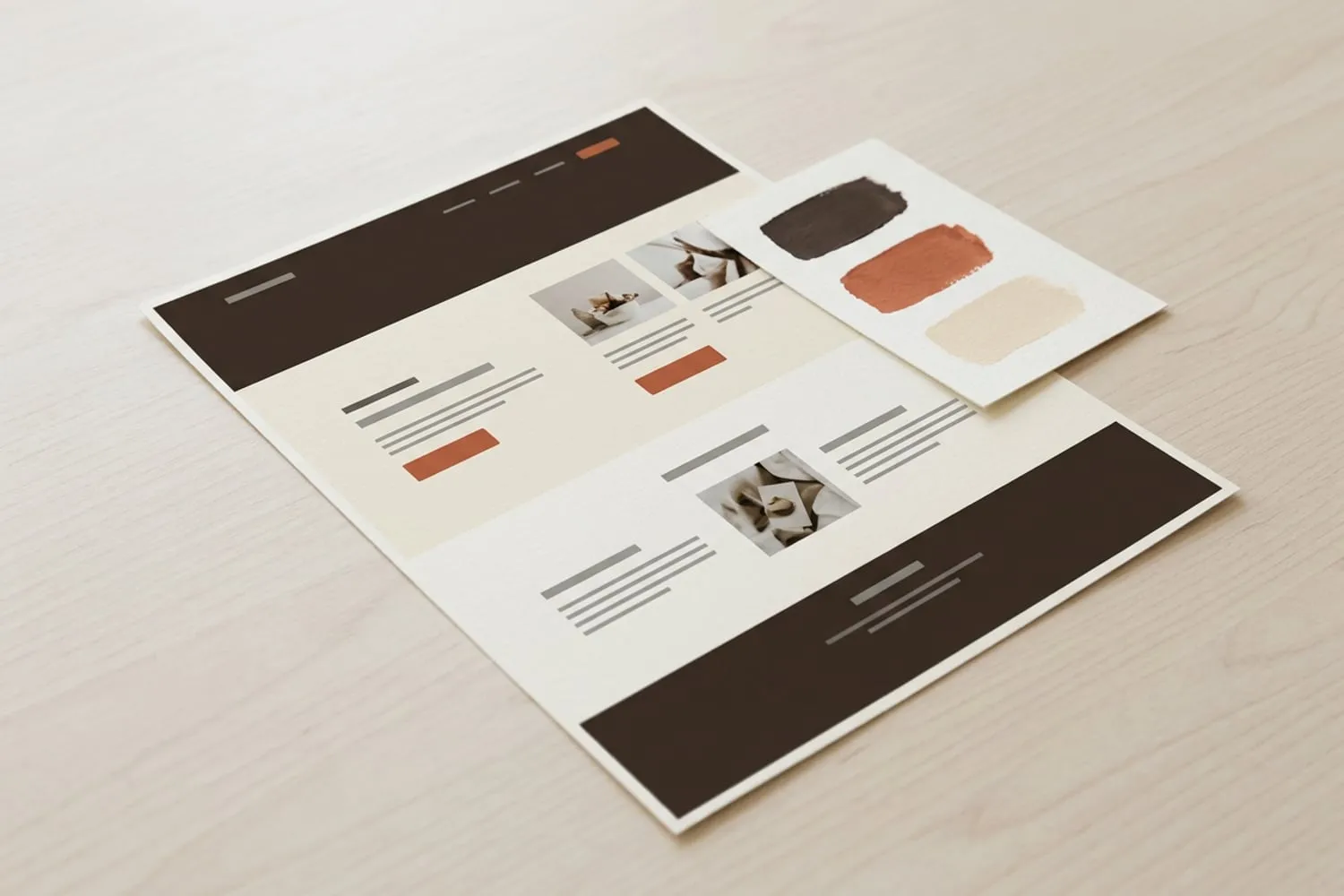
Palette galleries show five pretty swatches in a row. A working palette is different: each color has a job, and it does only that job.
| Job | What it colors | A common choice |
|---|---|---|
| Background | The page and most sections | White, an off-white, or a very dark shade |
| Text | Paragraphs and headings | Near-black on a light background, off-white on a dark one |
| Accent | Buttons, links and the one thing to click | Your brand color, in a shade that carries its button text |
| Second background (opt.) | Alternate sections, the footer, cards | A pale tint of the accent or a soft neutral |
| Muted (opt.) | Borders, form fields, captions | A gray that still passes the contrast check |
Builders already think this way. Wix’s color theme has base colors, with the brightest typically used for backgrounds and the darkest for text, and accent colors for links, buttons and menus. Squarespace builds every palette from five colors. Your job is to decide what goes in each slot.
Start from what the business already looks like
Your customers already know your colors from the sign over the door, the bags, the menus and the van. Start there, not from a palette generator.
- Gather the logo, five or six of your best photos and a picture of the shopfront, packaging or uniform.
- Pull out four to six candidate colors. Squarespace’s palette editor can build a palette from an image, and Coolors, on our Tools page, pulls colors from a photo and checks contrast too.
- Sort them: the lightest is a background candidate, the darkest a text candidate, and the most distinctive one the accent.
- Look at your photos again. If they’re full of color (food, flowers, artwork), keep the background neutral and let the pictures carry the color.
A template’s palette is a fine starting point too. Emmeline, a Squarespace salon template in Theme Match, comes in rust and lime; put your own colors into its palette and the layout stays exactly as it is.
Choose the background and text colors
For most small-business sites, white or a warm off-white with near-black text is the safe choice. A dark background can suit a bar, a tattoo studio or a photographer’s portfolio; make the text a soft off-white and check the contrast just the same.
For text, use a dark color rather than a mid gray. Light gray body text is a common contrast failure, and a few hex codes show why:
- dark brown #2B2522 on an off-white #FBF7F0 scores 14.1:1, comfortable for any length of text;
- gray #767676 on white scores 4.54:1, just over the minimum;
- gray #777777 on the off-white scores 4.19:1 and fails, so a gray that passes on white can fail on cream;
- gray #999999 on white scores 2.84:1 and fails by a long way.
Headings can take a darker shade of your accent if you want some color in them; run them through the same check.
Pick one accent and keep it for what you want clicked
The accent tells visitors where to click: Book now, Order online, the links in your text. If headings, icons and dividers all wear it too, the buttons stop standing out. Keep it for actions.
Then check what sits on the accent. Button text needs the same 4.5:1 as any other text:
- white on a terracotta #B4532A scores 4.98:1 and passes;
- white on a lighter coral #E07A5F scores 2.95:1 and fails;
- white on a lime #C9D86B scores 1.55:1, while a dark green #1F2A14 on the same lime scores 9.65:1.
A pale brand color can still be the accent: give the button dark text, or use a deeper shade of the color for buttons.
Links inside paragraphs need one more check. WCAG’s rule on use of color asks that color isn’t the only thing that marks a link; its guidance accepts a color-only link when the link color stands at least 3:1 apart from the text around it and gains a cue such as an underline on hover. With the colors above, terracotta links in dark brown text measure 3.02:1, only just over. Keeping links underlined settles it.
Tip: step back from your homepage and squint. The button you most want clicked should be the first patch of color you notice. If a heading or a divider gets there first, the accent is spread too thin.
Check the contrast
WCAG 2.2, the web’s accessibility standard, sets the numbers at level AA:
- 4.5:1 for normal text, under the Contrast (Minimum) criterion, the hint text inside form fields included;
- 3:1 for large text, at least 18 points (about 24px) or 14 points bold (about 19px);
- 3:1 for the parts people need to see to use the page, such as form field borders, icons and focus outlines, under Non-text Contrast;
- nothing for text in a logo, which is exempt.
To check your palette:
- Copy the hex code of each color from your theme’s color settings.
- Open WebAIM’s Contrast Checker, which is free.
- Enter each pair that appears on your site: text on the background, text on the second background, button text on the button, links on the background, and the hint text inside a form field on the field’s background.
- Where a pair fails, drag the checker’s Lightness slider until it passes. The color keeps its character, just a shade darker or lighter.
- Put the corrected hex codes back into your theme.
Text laid over a photo can’t be checked once, because the photo changes behind every letter. Put a dark overlay on the image, or set the text on a solid band of color.
Set the palette in your theme
Set colors in the site-wide settings, so one change updates every page:
- Squarespace (7.1): Site styles > Colors > Edit palette, where you can type hex codes or build a palette from an image. Each section then uses one of ten color themes made from your palette (Edit section > Colors). Changing a section’s color theme resets any text colors you set by hand in that section.
- Wix Editor: Site Design > Color theme. Change the base colors for background and text, and the accent colors for links, buttons and menus. Advanced Settings sets the default colors for buttons, text and backgrounds one by one.
- Shopify: Online Store > Edit theme > Theme settings > Colors. Most themes use color schemes, sets of background, text and button colors that you apply to each section; newer themes such as Horizon 4.0.0 and later use color palettes instead.
- WordPress block themes: Appearance > Editor > Styles > Colors. Edit the palette, then set Background, Text, Links, Headings and Buttons under Elements. On a classic theme, look in Appearance > Customize; how much you can change depends on the theme.
Color mistakes that make a site hard to read
- Light gray text for a soft look. It often fails contrast, and it’s harder still to read on a phone in sunlight.
- White text on a pale brand color, such as coral, lime, yellow or sky blue. Use dark text or a deeper shade.
- Text straight over a busy photo, with nothing behind the letters.
- An accent on everything, so the Book now button looks like decoration.
- Color as the only signal: links without underlines, required form fields marked only in red, sale prices shown only by turning them red. Add an underline, an asterisk or the word “Sale”.
- Pale hint text inside the field as the only label in forms. It has to pass 4.5:1, and it disappears as soon as someone starts typing, so add a real label above the field.
Fonts usually sit in the same style panel as colors, so it makes sense to settle them together: font pairing for websites works the same way, with one job for each font. If you’re still choosing the template these colors will go into, start with how to choose a website template, and find more guides on the look of a site in Web Design.
Questions
How many colors should a website have?
Three do the work: a background, a text color and one accent for buttons and links. Most sites add one or two quiet extras, such as a second background for alternate sections and a gray for borders and captions. Squarespace builds every palette from five colors, which is about as many as a small site needs.
What is the 60-30-10 rule?
It’s a rule of thumb borrowed from interior design: about 60% of what you see is the main color, 30% a secondary color and 10% an accent. On a website that usually means mostly background, a secondary color for some sections or the header and footer, and the accent kept for buttons and links. Treat it as a starting proportion, not something to measure.
What contrast ratio does text need?
WCAG 2.2 at level AA asks for at least 4.5:1 between text and its background, and 3:1 for large text, which is about 24px, or about 19px in bold. Form field borders, icons and other parts that people need to see to use the page need 3:1 against the colors next to them. Text in a logo is exempt.
Should my website colors match my logo?
They should come from it, but the whole site doesn’t have to be in the logo’s colors. Take the accent from the logo and keep the background and text quiet, so the logo and your photos stand out. If the logo’s color fails contrast as a button, use a darker shade of it for buttons and keep the original in the logo.
Sources
- Understanding Success Criterion 1.4.3: Contrast (Minimum), W3C Web Accessibility Initiative
- Understanding Success Criterion 1.4.11: Non-text Contrast, W3C Web Accessibility Initiative
- Contrast Checker, WebAIM
- Change your site’s colors, Squarespace Help Center