How to Design a Web Page That Works on Every Screen
How to design a web page: set goals, choose a platform, map connected pages, shape the layout, then test and launch a site that works on every screen.
In short
Web page design is deciding what a page needs to do, how its content is arranged, and how it looks and works across screens. Start with your audience, goals, and desired visitor actions, then plan pages and navigation before choosing a platform, layout, colors, and fonts; make the design readable, accessible, mobile-friendly, and easy to use. Test before launch and keep improving from visitor feedback and analytics, so the page makes the next step clear.
Think about the last shop you walked into that just felt right. The layout and the lighting told you what to expect before anyone said hello. A web page does that same job for visitors in seconds.
Web page design is deciding what a page is for, how it’s arranged, and how it looks on every screen.
It sounds like a lot, but it breaks down into clear steps. We’ll cover goals, layout, fonts, color, photos, mobile and launch, plus a look-first path where the style you love points you to the right theme and platform.
Designing a Web Page, Starting with Goals
Wondering how to start a website? Begin with the job the site has to do, not the look.
Your main goal, audience, and visitor actions
Start with one primary goal, the single thing the site must accomplish. It’s about what visitors do, not how the page looks. Then name your target audience.
A florist courting local brides, for example, puts her wedding work and a booking button near the top, so a bride can book in seconds. List the desired visitor actions, such as calling or signing up.
Finally, survey your stakeholders (anyone with a stake, like staff) and check your analytics, the traffic reports showing which pages people visit.
Choose your team and whether to DIY
Your team might include:
- Designers for layout and look
- UX (user experience) and UI (user interface) specialists for how visitors move through the site
- Developers who build the pieces
- Content writers for words and photos
- An SEO (search engine optimization) specialist to help people find you
Whether you need that team yet is the real question. A freelancer is one person hired for one job, while an agency is a small firm with several specialists.
Going DIY (do it yourself) with a website builder means assembling the site from ready-made themes, with no coding needed. A bakery owner, for instance, can update her weekly specials herself.
List the features your site needs
Start by naming the functions your site must perform:
- Online store (e-commerce) for selling
- Forms for contacts, bookings, or signups
- Search so visitors can find things fast
Then write a one-page project brief covering goals, features, budget, and timeline. Add a planning tool, like a shared spreadsheet, so everyone sees what’s due. Put it on paper before you pick a theme.
Pick a Platform, CMS, or Site Builder
Whether you pick a content management system (CMS) or a site builder, compare options first.
Comparing platforms and finding the right fit
- WordPress gives you room to customize, but you manage hosting and updates yourself.
- Wix and Squarespace are hosted builders with easy drag-and-drop editors.
- Shopify is built for e-commerce, so start there if you sell online.
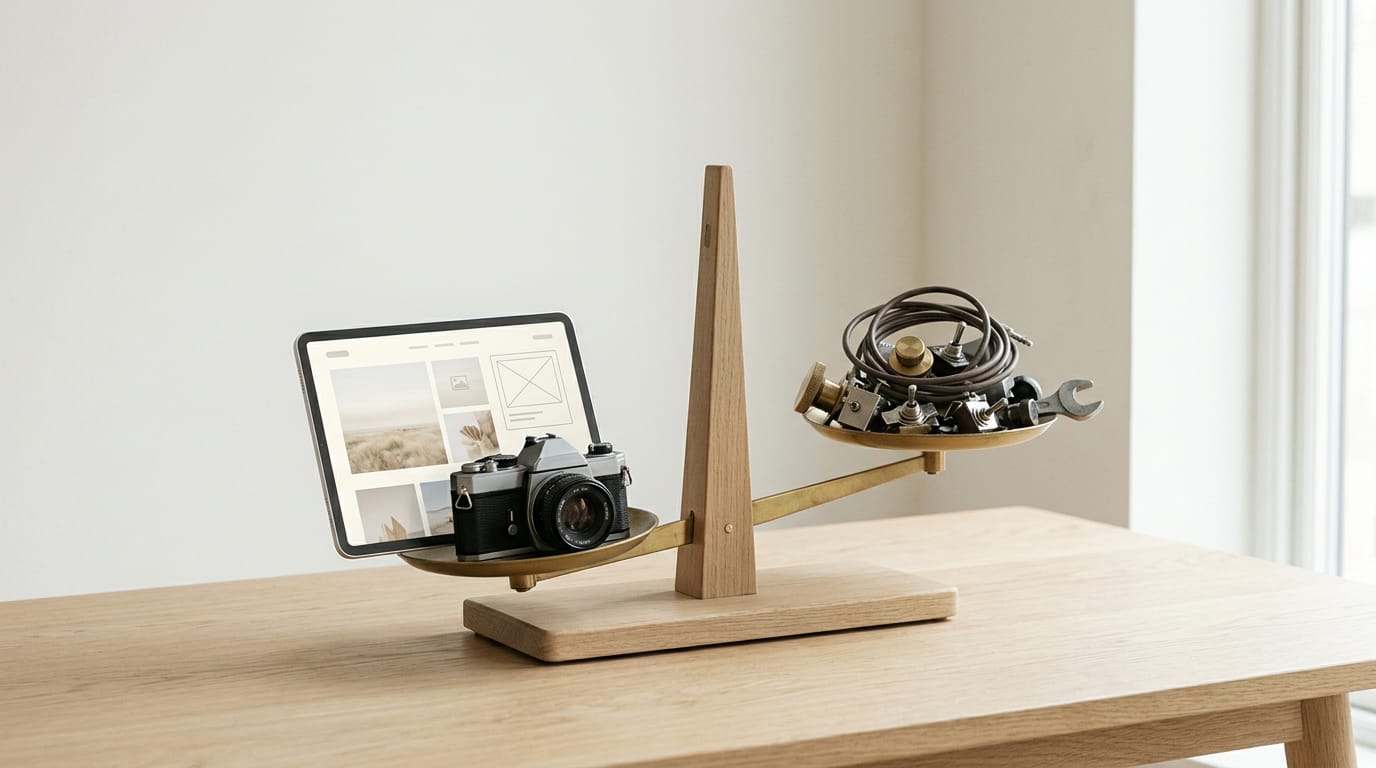
Ease and flexibility pull in opposite directions. The easier a platform is to start, the fewer dials you’ll have later. Match the platform to your site type. A wedding photographer can launch on a hosted builder, while an online bakery needs Shopify.
Weigh ease, scale, SEO tools, and price
- Ease and scale. Pick an editor you can learn fast and a platform that grows with you.
- Built-in SEO and marketing tools. Search engine optimization (SEO) helps people find your pages, so check for title and description settings.
- Free vs paid plans. Free plans suit testing but have limits. A retired teacher blogging for fun may only need a basic plan.
- Free trials and pricing. Test the editor on a free trial, then check the renewal price, not just the discount.
Don’t wait for perfect research. Build a rough draft and aim for progress rather than perfection.
Edit content without code, plus key plugins
A CMS lets you change text and photos without code. Plugins are add-on tools that extend your platform, and the essentials are:
- SEO plugins set page titles and descriptions.
- Security plugins guard against suspicious logins.
- Backup plugins save copies so you can roll back.
Hosted builders often include some of these, so check first. For example, a potter who deletes her product page can restore it from a backup. If you hire a developer later, ask which platform they know well.
Getting a Domain and Hosting Set Up
Your domain name is your address on the web, and hosting is where your pages live. Get both right early.
Keep your domain name short and memorable
Think of a bakery owner handing out cards at the farmers market. Customers should spell the name after hearing it once. Keep it short and on-brand, and watch for these:
- Avoid hyphens and odd spellings. They’re easy to mistype on a phone.
- Pick an extension. A .com is the safe default most people type by reflex. Other endings can suit a niche.
- Check availability and trademarks. Search the name with a registrar (where you buy and renew your domain), then confirm no one else owns it as a brand.
- Compare prices. Renewal costs matter more than the first-year deal.
Compare hosting types and what they cost
Hosting shapes speed, uptime (how often your site is reachable), security and support. A freelance photographer with big gallery images needs pages that load fast, or clients wait.
- Shared hosting. Your site shares a server with others, so it’s usually the lowest-cost start.
- VPS (virtual private server). You get your own slice of a server, with more control and more to manage.
- Managed hosting. The provider handles updates, backups and security, so it costs more but saves you time.
Many website builders bundle hosting into the monthly price. That’s convenient, but check that you can move your site later. If you bought a domain elsewhere, paste your host’s details into your registrar’s settings to connect the two.
Shared plans usually cost the least to start, while VPS and managed plans cost more each month. Compare what’s included and the renewal rate. The cheapest to start isn’t always the cheapest to keep.
Plan Your Content and How Pages Connect
Before you pick colors or fonts, decide what your site needs to say and which pages will carry it.
Getting your words and images ready
Content drives design. Text length, photo count, and page length all shape the layout, so draft your words first. A freelance photographer with ten strong portfolio shots, for example, will build her homepage around those images.
Keep your copy in a consistent tone of voice, and gather your brand assets: your logo, color codes, and photos you own. Then decide who writes the copy, and agree on the tone before anyone types a word.
Pages nearly every site needs
Most sites start with a homepage, an about page, and a contact page. Add a services or products page, a blog if you plan to publish, and legal and delivery pages like privacy and shipping details, which visitors often look for before they buy.
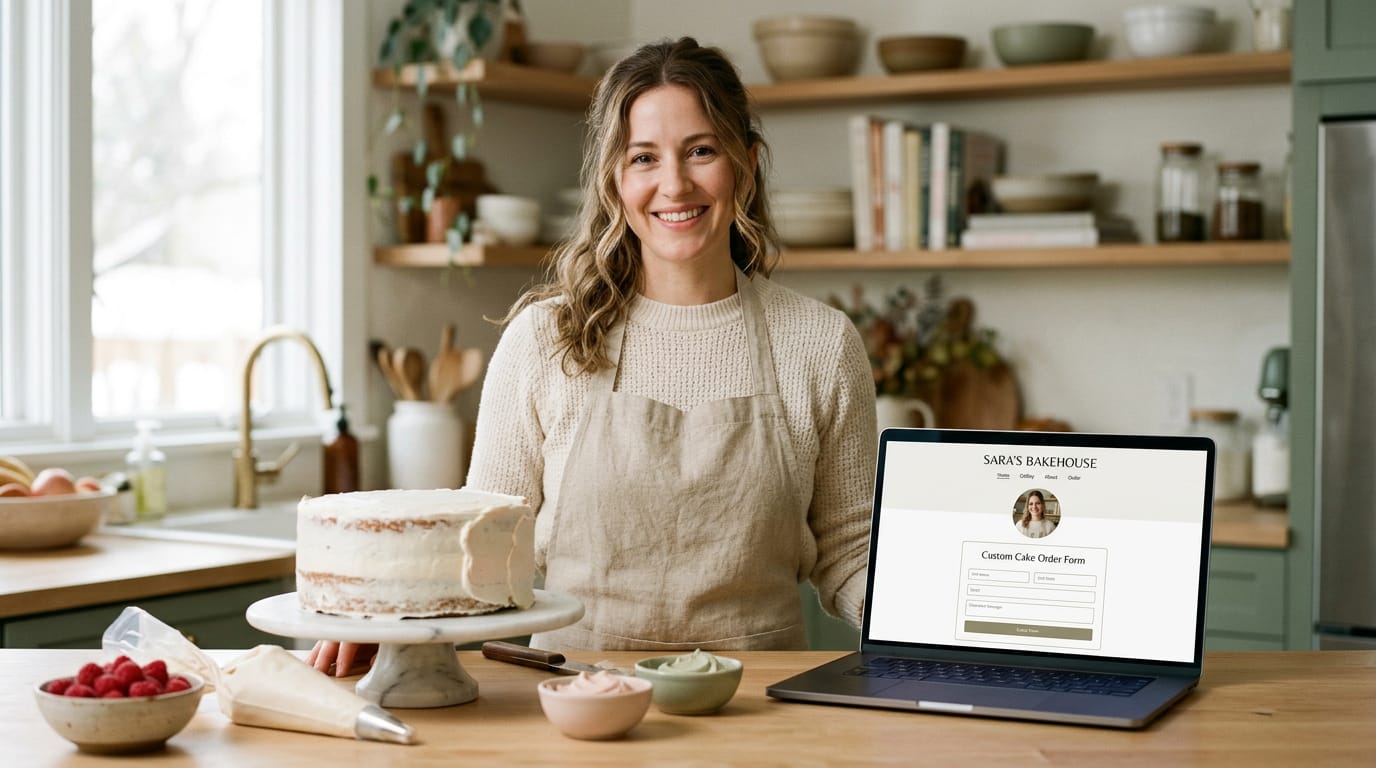
Add a photo of yourself too. Visitors often care more about who is behind the business than what it sells. A home baker taking custom cake orders, for instance, builds trust just by showing her face beside the order form.
Mapping the site map and navigation paths
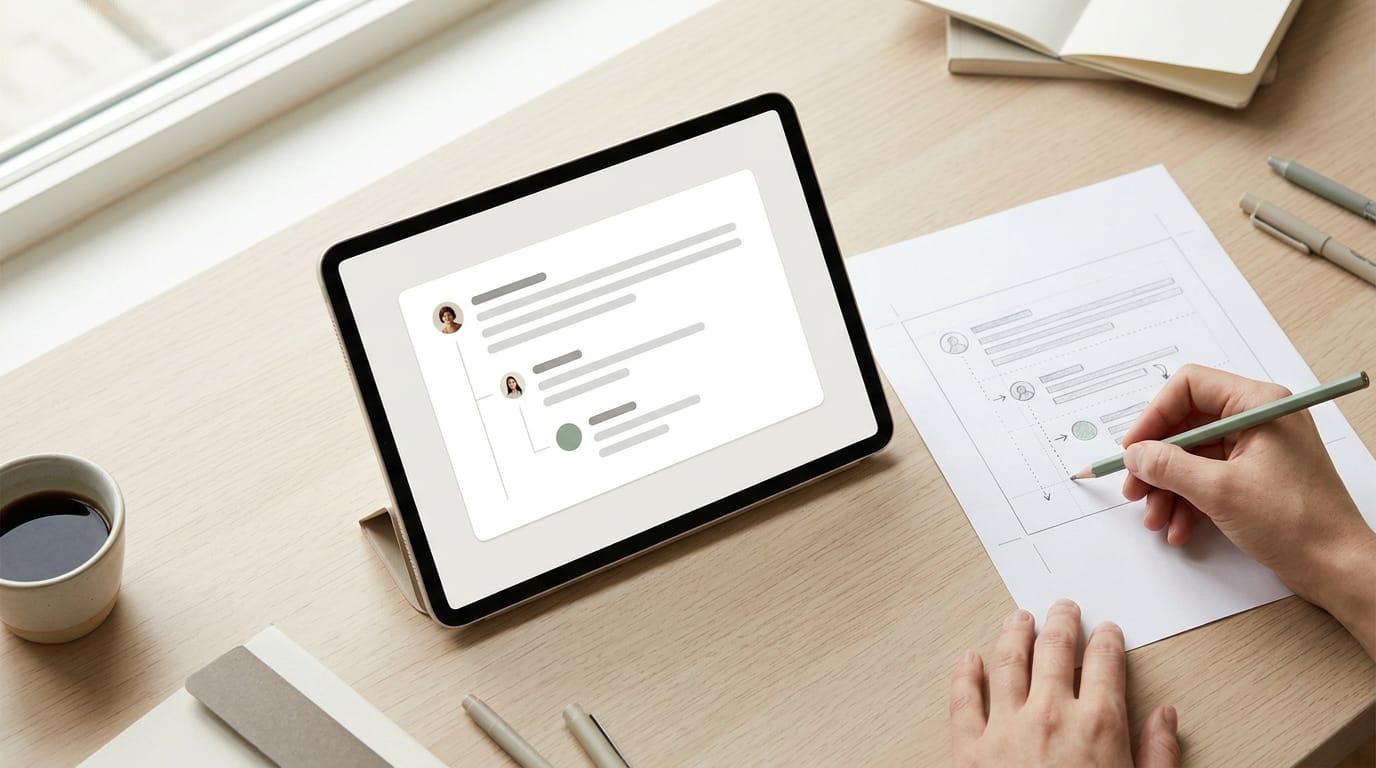
A sitemap lists every page and how they nest under one another. Sketch yours on paper and pick the simplest structure that fits: a flat list of main pages, or a homepage with a few branches.
Keep every page a few clicks away. Watch for orphaned pages, which no other page links to, so nobody can stumble onto them.
Finally, try user journey mapping. Picture a retired teacher starting a gardening blog: she reads a post, wants the next one in the series, then looks for a subscribe button.
Trace that path and make sure each step is one click away. Fewer clicks, more readers.
Shaping the Look and Layout of Pages
Before you pick a color, decide where things go. We’ll start with layout, then look.
Sketch page layouts before styling them
A wireframe is a plain blueprint of a page, with boxes for headers, photos and buttons. A florist, for instance, puts the order button right below her arrangements so customers find it first.
Layout comes before theme, so sketch the structure, then pick a theme that fits. Draw on paper or in a design tool like Figma or Sketch. Try rapid prototyping: make quick, rough versions and revise them.
Start with the homepage on paper, deciding what goes where before how it looks.
Keeping colors, fonts, and logo consistent
A brand style guide lists your logo, colors and fonts, plus rules for using them. Start with a mood board of sites you admire.
Pick a color palette of three colors at most and no more than two fonts. For font pairing, combine a bold heading font with a plainer body font. Use your logo on every page, and pick sharp, consistent photos.
If you hire a designer, be specific: “use the teal from our logo for buttons” beats “make it pop.”
What are the five golden rules of a website?
The five golden rules of a website are:
- Whitespace and visual hierarchy. Empty space lets the eye rest, and the most important things should stand out.
- Typography and legibility. Use readable text sizes with strong contrast against the background.
- Alignment and consistency. Line things up on a clear grid and repeat spacing across pages.
- Accessible to all users. Visitors who use screen readers (software that reads pages aloud) should still get around easily.
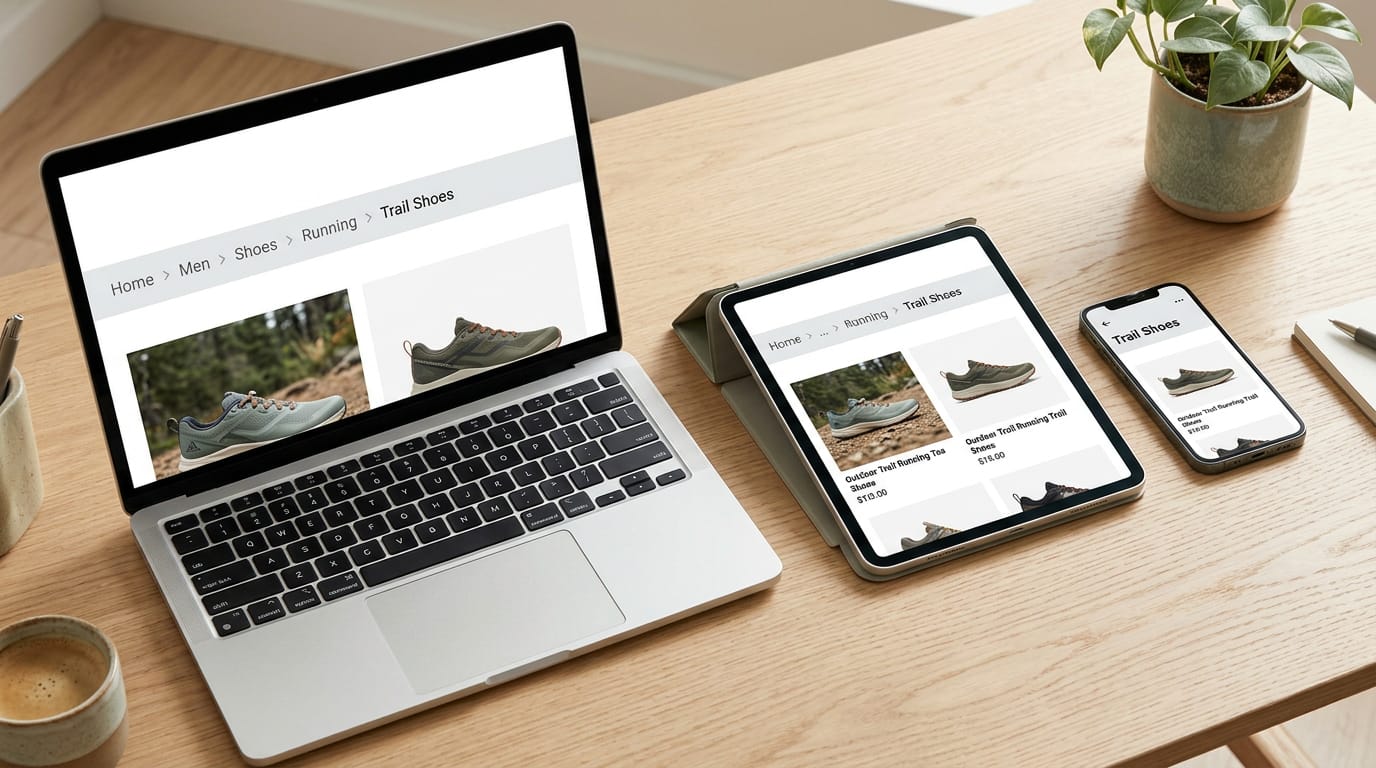
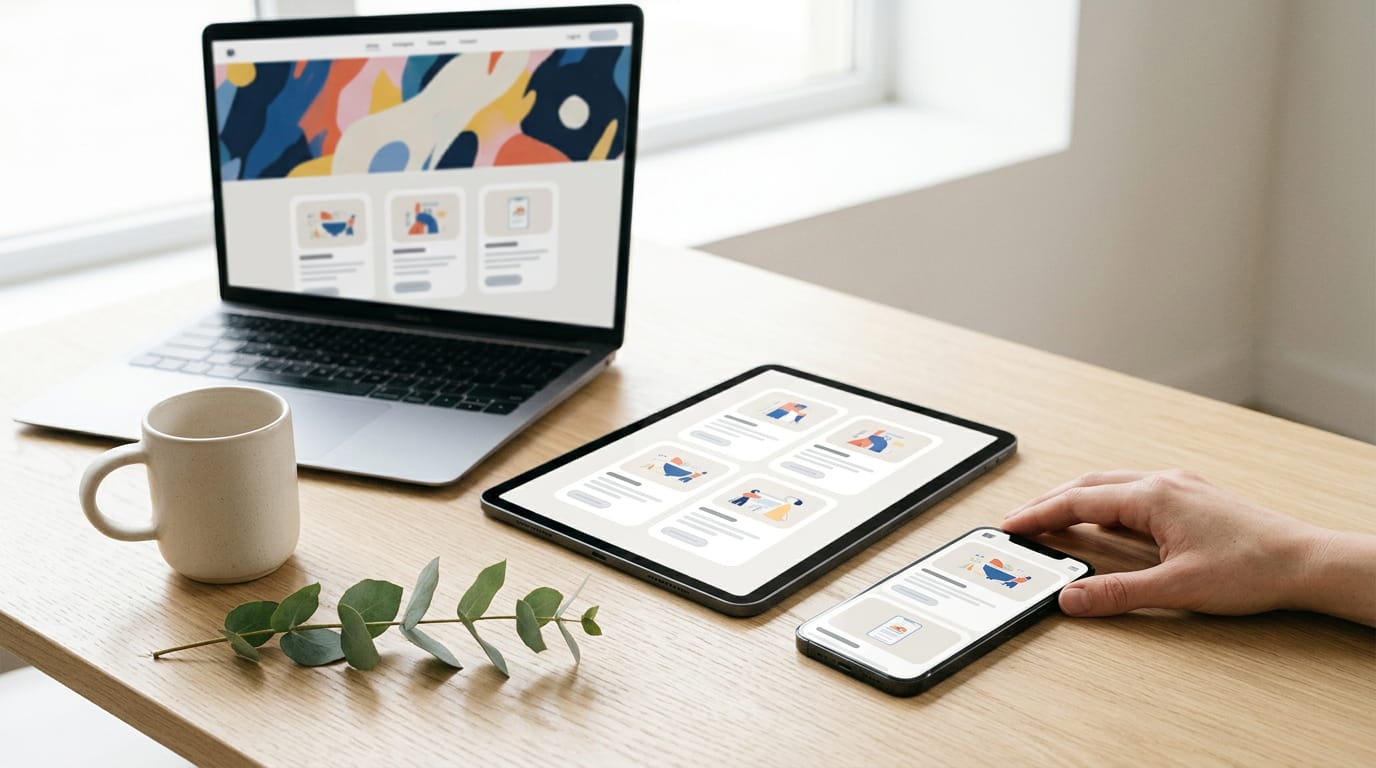
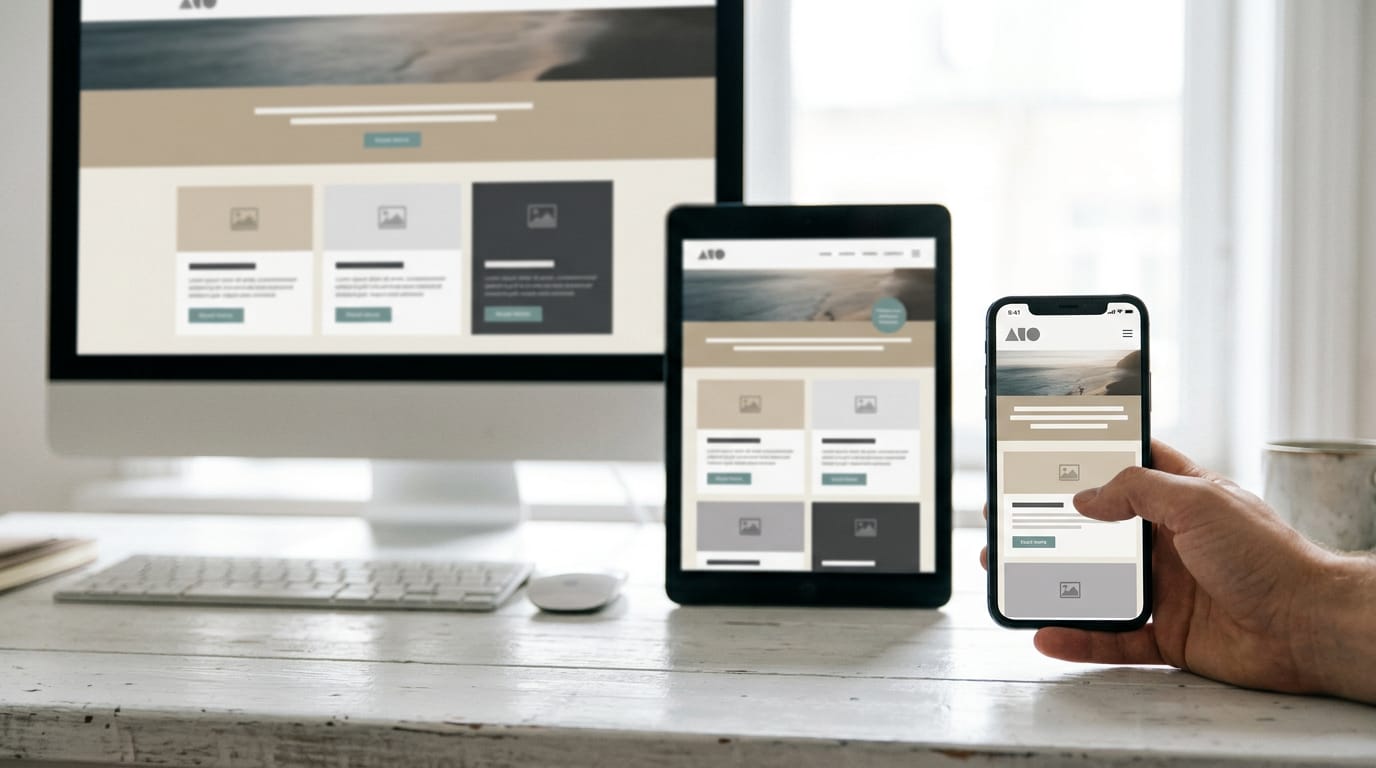
- Mobile responsiveness. Your layout should shrink and stack cleanly on a phone, so test it there.
Starting from a theme or page builder
A theme is a pre-built design that sets fonts, colors and layout. Free themes cost nothing, while premium themes cost more but add extras. Many include templates for page types, like a homepage.
A page builder is a tool that lets you arrange blocks by drag-and-drop, with no code. It’s handy, but a research paper on no-code and traditional programming notes that page builders may add code that affects a website’s performance.
Pick the look first, then the theme, and let the platform follow. Style leads.
Getting Found in Search and on Social
Even a great page needs visitors. Here’s how search and social send them your way.
Tuning titles, links, and images for search
- Titles and meta descriptions. Titles are clickable headlines in search results, and meta descriptions are the summaries beneath them. Write both for people, not robots.
- Headings and URLs. Use one main heading per page, and keep web addresses (URLs) short and readable, like
/spring-cakes. - Internal links and schema. A bakery can link its wedding cakes page to its order form, so ready visitors book faster. Schema is extra code that labels details, like opening hours.
- Image alt text and size. Alt text describes a picture for screen readers and search. Shrink big photos so pages load fast.
- Submit XML sitemap. An XML (Extensible Markup Language) sitemap lists every page you want found. Submit it to search engines so they know where to look.
Why good content matters most in search
Good content matters most. According to a paper on optimizing content beyond the checklist, useful, high-quality content can help a website attract search visitors.
Blogging draws search traffic. Think of a hobby blogger answering the questions readers type in, since each post is one more page search can find. Podcasts and videos need thorough notes or a transcript, because search can’t hear audio.
Keywords (the phrases people type into search) matter less than you’d think. Write for readers first, and the right phrases tend to follow. Clear writing wins.
Sending more people to your site
- Share on social media. Post each new page where your customers already spend time, with a line on why it’s worth a click.
- Rank in Google search. Ranking means your page appears for the phrases people type, and it builds over time.
- Blog content as traffic source. Consider a florist whose wedding-season guide keeps drawing visitors from search and shared links.
Test, Launch, and Keep the Site Running
Before anyone else sees it, you’ll want to test how it works, not just how it looks. Then get it launch-ready and keep it running.
Testing before the site goes live
- Cross-browser and device checks. View pages in several browsers, on a phone and a laptop.
- Usability and accessibility tests. Can visitors use the menu and buttons with just a keyboard?
- Speed testing. Check how fast each page loads on a phone.
- Broken link scan. Run a link checker so nobody hits an error page.
- Test with real users. Ask a friend to find your prices, then watch where they get stuck.
A florist checks her new shop site on her phone and finds the order button hidden under a banner. She moves it up. One button, caught in time.
Setting up the site for launch day
Turn on SSL (secure sockets layer, the encryption behind the padlock) so visitors’ information travels safely. Submit a sitemap (a list of your pages) to search engines. Set up analytics to see how many people visit and what they read.
Then you’ll upload your final content and proofread it.
Keeping the site updated and improving it
Launch is a beginning, not a finish line. Here’s what keeps it running:
- Updates and backups. Install updates as they arrive and keep a recent backup, a saved copy of your site.
- Security checks. Review your logins and add-ons every few months.
- Content refreshes. Update prices, hours, and old posts so nothing goes stale.
- Monitor analytics and SEO (search engine optimization). Check visitor numbers monthly and see which pages draw search traffic.
- Iterate on feedback. Turn customer comments into a to-do list for your next small change.
Designing a web page comes down to a few honest questions: what the page is for, who’s visiting, and what you want them to do next. Answer those first, and the layout, fonts, color and photos fall into place around your answers.
Your first version doesn’t need to be perfect, just clear enough to earn a visit and easy enough to improve. Good design doesn’t have to be complicated. It just has to make the next step obvious.
References
Questions
What are the five golden rules of a website?
The five golden rules are to use whitespace and visual hierarchy, keep typography readable with strong contrast, align elements consistently, make the site accessible, and ensure it works well on mobile devices. Together, these principles help visitors find information and use the site comfortably.
How to start a website?
Start by defining the website’s main goal, target audience, and the actions you want visitors to take. List the features and pages you need, set a budget and timeline, then choose a suitable platform, domain, and hosting. Draft the content and layout, build the site, test it on different devices, and launch it with security and analytics set up.
Is web design still worth it in 2026?
Yes. Businesses and organizations still need websites to explain what they offer, reach customers through search, and make it easy for visitors to take action. The tools and platforms may change, but clear, accessible, mobile-friendly design remains useful.
Do websites earn money?
Yes. Websites can earn money through online sales, bookings, paid services, subscriptions, advertising, or affiliate links. Earnings depend on the site’s audience, offer, and ability to attract visitors, so a website does not generate income automatically.