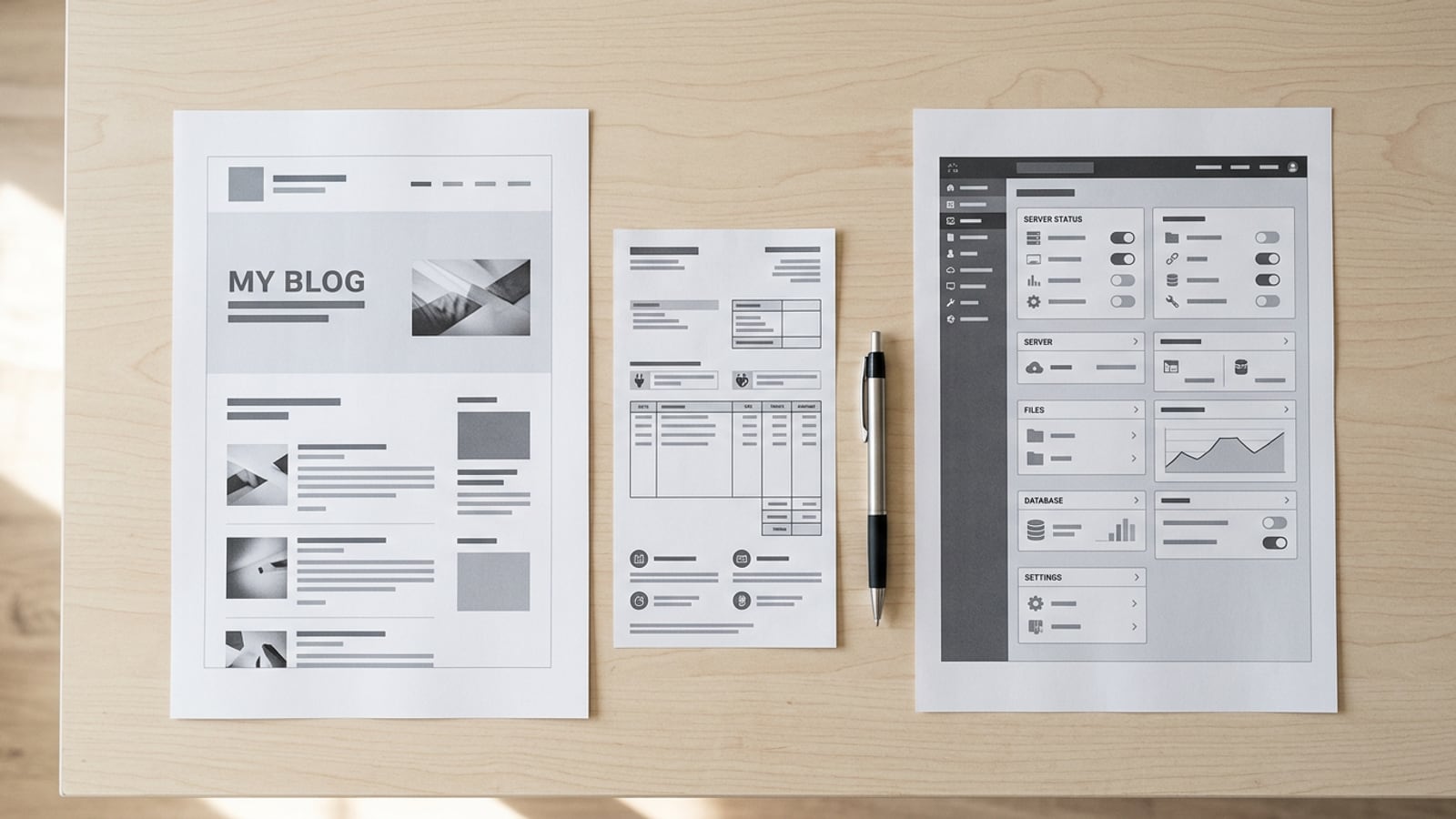
WordPress Tutorial: Build and Design Your Site Step by Step
WordPress tutorial takes you from setup through editors, themes, and plugins, with a simple way to choose your site's look before adding tools.
In short
WordPress is a content management system that lets you create and update a website’s pages and posts without writing code. Choose between hosted WordPress.com and self-hosted WordPress.org, then build with the block editor, select a theme for the look you want, and add plugins only for features you need. In practice, a clear setup, mobile-friendly design, regular updates, and backups help you run a site that is useful, safer, and easier to maintain.
Picture yourself at the kitchen table late at night, laptop open, with half a dozen demo sites already sitting in your tabs. Every option promises the same thing, and that’s what makes choosing a WordPress setup so confusing at first.
This tutorial walks you through WordPress in a clear order: setup first, then the block and site editors, themes, plugins, and the safety and speed basics that keep your site healthy.
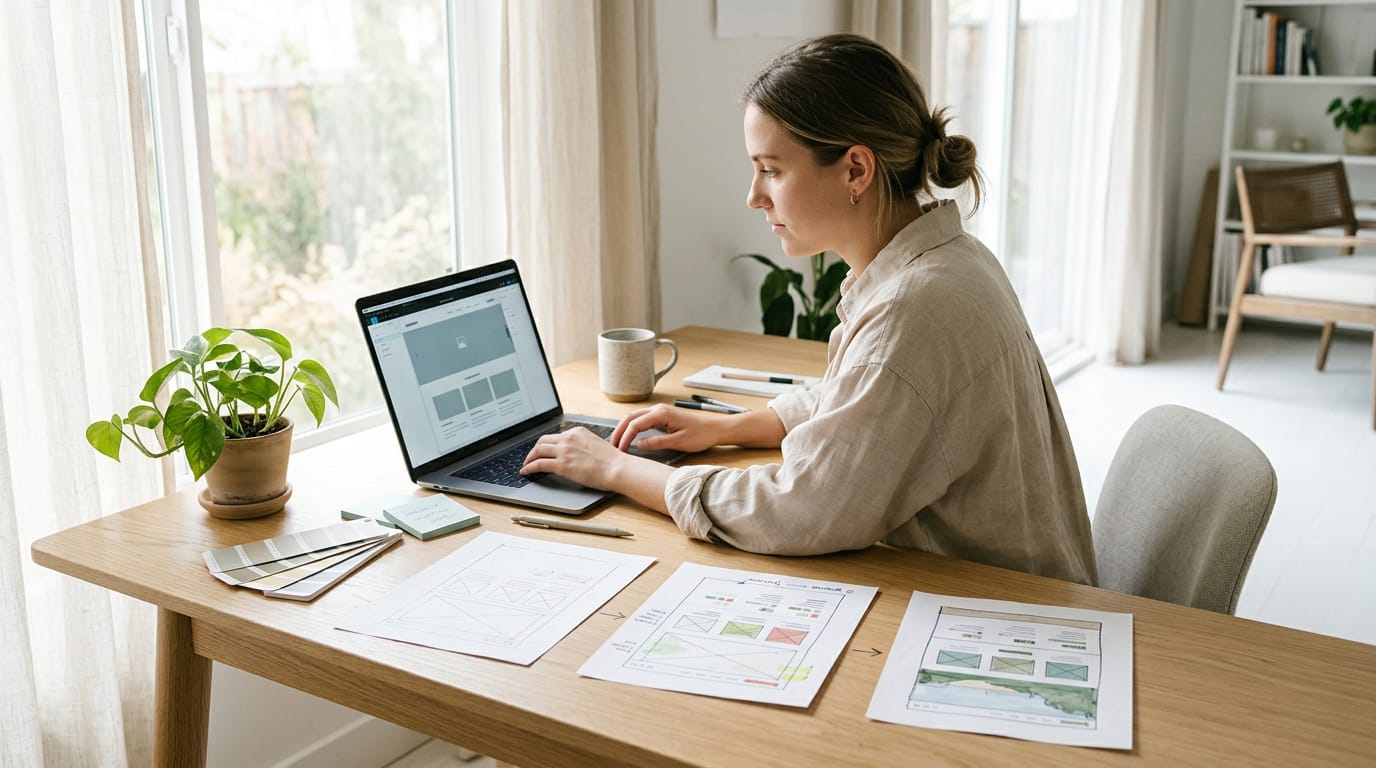
Along the way, you’ll learn to pick a theme by the look you want before you choose any tools.
Getting Started with This WordPress Tutorial
Before you touch a setting, here’s the groundwork: what WordPress is, its two versions, and what it costs.
What WordPress is and who it’s for
WordPress is a content management system (CMS), software that lets you update pages and posts without writing code. W3Techs tracks WordPress’s share of websites and of sites using a CMS. It’s beginner-friendly, so you don’t need any prior experience.
For example, a wedding photographer can build a portfolio from a dashboard of menus and buttons, with no developer on call. Freelancers and entrepreneurs use it for exactly that reason: a professional site they can update themselves.
Choosing between WordPress.com and WordPress.org
Don’t let the names fool you: the setups differ. WordPress.com is a hosted service: the company runs the software and servers for you.
WordPress.org is the free software itself, which you install on hosting (the server space that keeps your site online), making it self-hosted. Hosted is simpler to start with, while self-hosted puts you in charge.
A retired teacher starting a book blog may be happy with hosted, while a small shop wanting full control may lean self-hosted. Both options work, but they ask different things of you.
Setting up a domain and what it costs
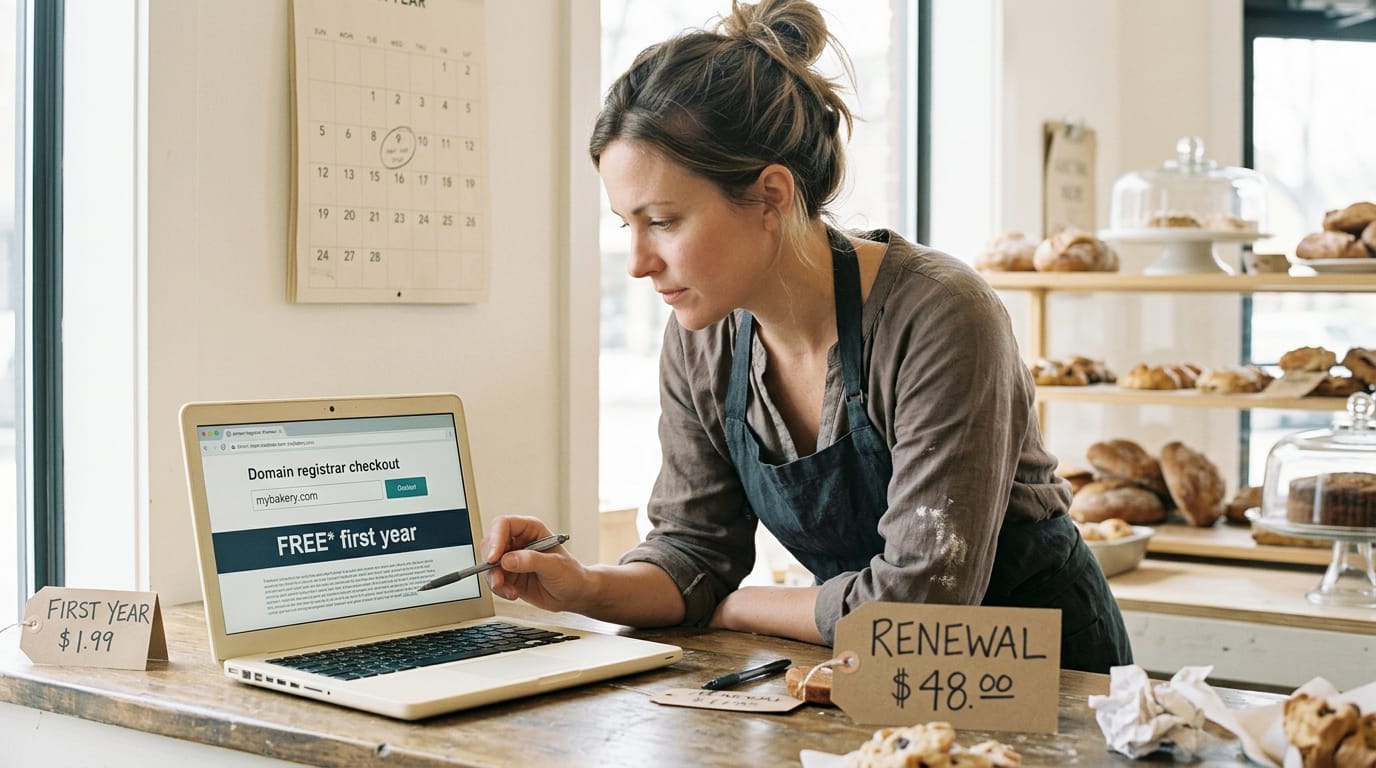
Your domain is your web address, like yourname.com, bought from a domain registrar that sells and renews it. Free domain offers are tempting, but the free part may cover only the first year.
Expect yearly costs for both the domain and hosting, and check the renewal price before you buy. A local bakery buying a cheap first-year domain should check next year’s price now, since that’s the number that hits the budget.
Once you’ve got both, we’ll walk through installing WordPress step by step later in this tutorial.
Using the Dashboard to Create Content
Almost everything you publish happens from one screen, so learn your way around before you write a word.
A dashboard tour and posts versus pages
The Dashboard is your control room, the first screen you see after logging in. Its left-hand menu takes you to writing, media and settings.
Posts are dated entries, like blog articles or news updates. Pages hold content that rarely changes, like an About page. A bakery’s weekly specials go in a post, while its opening hours stay on a page that never needs editing.
So posts carry the news, and pages carry the basics.
Writing with the Gutenberg block editor
Gutenberg is WordPress’s block editor. You build content from blocks: a paragraph, a heading, a picture or a button. Click the add (+) button to insert one.
Here’s how to start a post:
- Go to Posts and choose Add New.
- Add your title at the top.
- Build your text with blocks.
- Save it as a draft.
To edit an existing post, open it from your Posts list and make your changes. Readers won’t see them until you update.
Adding images, links and embedded media
To add a picture, insert an image block and upload a file or pick one from your Media Library, where WordPress stores your uploads.
A featured image is the main picture for a post, often used as its preview. A wedding photographer sets one on every job, so each post looks polished before anyone clicks.
To add a link, highlight the words, then paste in the web address. Make the link text say where the reader is going. For a clear next step, try a button block, such as “Book a consultation.”
To embed a video, paste its web address into the editor. For audio or a PDF (Portable Document Format), use the matching block.
Sorting posts and choosing publishing options
Categories are broad groups, like Recipes or Events. Tags are specific keywords, like gluten-free. A small shop might keep just three categories.
Here’s what you’ll choose from:
- Draft keeps the post private while you work on it.
- Publish makes it live right away.
- Schedule sets a date and time for it to go live.
Nothing goes live until you say so.
Shaping Your Site’s Layout and Design
Your layout is the first thing visitors notice, so shape it before adding content.
Pages, menus, widgets and your homepage
Pages hold content that stays put. You’ll create one for each topic, and most small sites start with these four:
- Home: first impressions
- About: who you are
- Services: what you offer
- Contact: how people reach you
A menu is the row of links visitors use to get around. A custom menu puts your key pages first, so nobody has to hunt for them.
Widgets are small add-ons, like a search box, that sit in spots such as a sidebar. Your theme decides which spots you get.
A static homepage is one fixed page that greets visitors, rather than a feed of newest posts. Think of a wedding photographer. She adds Portfolio and Contact to her menu and makes her best shots the homepage, so visitors see her work first.

Picking a theme and customizing it
A theme controls how your site looks: colors, fonts, spacing and layout. Plugins add features, like a contact form. The theme is the outfit, and plugins are the accessories.
You can usually swap in your logo and fonts from a live preview, without touching code. Block themes go further in the site editor, where you can rearrange your header, footer and spacing. It’s like moving furniture around in a room you already own.
Start with the look, not the feature list. Ask whether you want clean and airy or bold and busy, then open the demos that match. A local bakery wanting warm tones and big food photos will pick differently than a law firm wanting calm pages.
Check the demo on a phone too. Don’t skip it.
Keeping Your Site Safe and Searchable
Once you’re live, these three areas need steady care:
Updates, backups and protection from hackers
Updates are about prevention rather than repair. Install urgent security updates promptly, since a missed one leaves a known weak spot open to hackers.
A backup is a saved copy of your whole site. A thesis on optimizing WordPress is clear that updating a plugin or theme “requires a full backup of the entire site.”
Back up before every update. Picture a bakery owner whose menu page goes blank after a theme update. Her saved copy brings the menu back, so she isn’t rebuilding it by hand.
Keeping up with Google Search Console updates
Google Search Console shows how your pages appear in search, and it gets updated from time to time. Treat it as a regular check, not a one-time setup.
Share a page on social media, then check whether search brings readers to it too. Search Console shows which pages people find through search, so compare the two.

Converting visitors with plugins and subscriptions
A conversion is any step you want a visitor to take, like joining your email list or buying something. Conversion plugins add signup forms and buy buttons.
CAPTCHA (the “prove you’re human” puzzles) can frustrate real visitors. Your protection should work for visitors, not against them, so try quieter options like hidden-field checks.
WooCommerce, the plugin that adds a shop to WordPress, offers a subscriptions add-on for monthly boxes or memberships. Consider a retired teacher selling monthly reading guides: renewals run automatically instead of by hand.
AI Tools and What’s Next for WordPress
Artificial intelligence (AI) tools are showing up inside the WordPress workflow, and they can take some of the busywork off your plate.
Managing WordPress with AI assistants
An AI assistant is a chat tool where you type a request and get a written answer back. Picture a retired teacher starting a blog who asks an assistant to tighten a clumsy welcome paragraph.
Two minutes later, it’s ready to paste into the editor, and the afternoon is yours. That’s the payoff: less time stuck on the blank page. The goal is to use AI to speed up your decisions, not to make them for you.
Here’s how each one fits in:
- ChatGPT running a site: ChatGPT can talk you through each step, like adding a page or changing a menu, while you do the clicking yourself.
- Claude integration and prompts: Claude works the same way, and the quality of the answer depends on your prompt. A florist who types ‘help with my shop’ gets a vague reply, but one who asks for ‘a short, friendly About page for a small-town florist’ gets something usable.
- AI setup tools: Some tools draft a whole site from a short questionnaire. Treat that draft as a starting point and always double-check it.
What’s coming in WordPress 7.1
We’ll keep this general, so check the official WordPress release notes for the final feature list before you plan around any change. Think of a small shop owner planning a spring redesign around one new feature.
If that feature lands late, her whole launch date slips. Build around what’s confirmed, and keep a plan B for anything still in flux.
Setup, the editors, themes, plugins, and safety all work together, and each one gets easier once the basics click. Take them one step at a time, and you’ll watch your site take shape faster than you expect.
Choose the outfit before the platform, and you’ll have a site that feels like yours from the very first visit.
Get the look right first, and everything else falls into place.
References
- Optimizing WordPress for efficient website creation and management — theseus.fi (2025)
- Usage Statistics and Market Share of Squarespace, November 2026 — w3techs.com