How to Publish Squarespace Website: A Complete Guide
How to publish a Squarespace website: choose a plan, connect your domain, and check your theme before launch, so visitors can reach your site.

In short
Publishing a Squarespace website means changing its availability from private to public so anyone with its link can visit and search engines can find it. Before switching it on, choose a plan with the features you need, connect your domain, and check your pages, links, mobile display, titles, and branding. A careful final check and early domain setup help visitors reach a polished site when it goes live.
Think of your website like a shop that’s finished getting ready. The shelves are stocked, but nobody can walk in until you unlock the door. Publishing is that moment.
On Squarespace, publishing means choosing a plan, connecting your own domain (the web address people type in), checking that your theme looks right, and then going live.
In this post, we’ll walk you through each step, plus the look-and-theme checks worth making before launch.
How to Publish Your Squarespace Website
Ever finished a site and then hesitated before hitting the button? Publishing is the moment your site stops being a draft and starts working for you.
What it means to go public
Going public means you switch your site from private to public. Until then, only you can see it. Flip the switch and anyone can.
Think of a home baker who finishes her site on Sunday night. Going public means customers can find her menu by Monday morning, not just in her preview window. Same site, new audience.
It’s your digital presence’s first big show: less about finishing the site and more about being seen.
What you gain by going live
Here’s what the switch gets you:
- Search engines start noticing. Your site becomes something they can find and show to people searching for what you offer.
- You reach more people. Anyone with your link can visit, not just the folks you’ve told in person.
- You attract customers and fans. Shoppers, readers, and clients can discover you and come back.
- You get immediate feedback. Visitors respond right away, so you learn what’s working.
- You build interaction. Forms, comments, and messages turn visitors into a community.
Going live also means knowing the limits up front. Before you pay, check that your plan includes every feature you’ll use, and look at the renewal price, since that’s what you’ll keep paying after the first year.
As for Wix or Squarespace, neither wins on every count. Compare the look you want, the features your plan includes, and the renewal cost, then test both the way you’d test-drive two cars.
Pick the one that fits your site, not the one with the flashiest demo.

Check These Things Before Launch
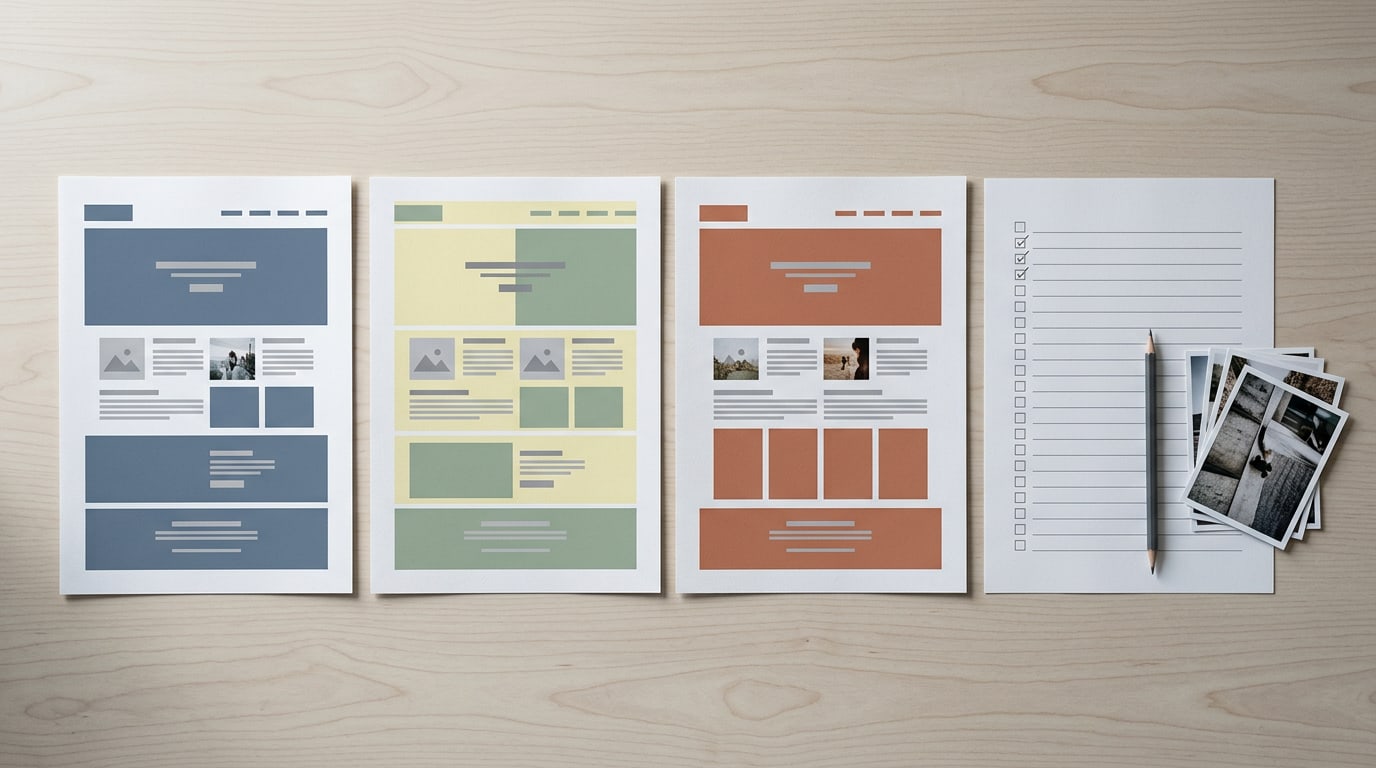
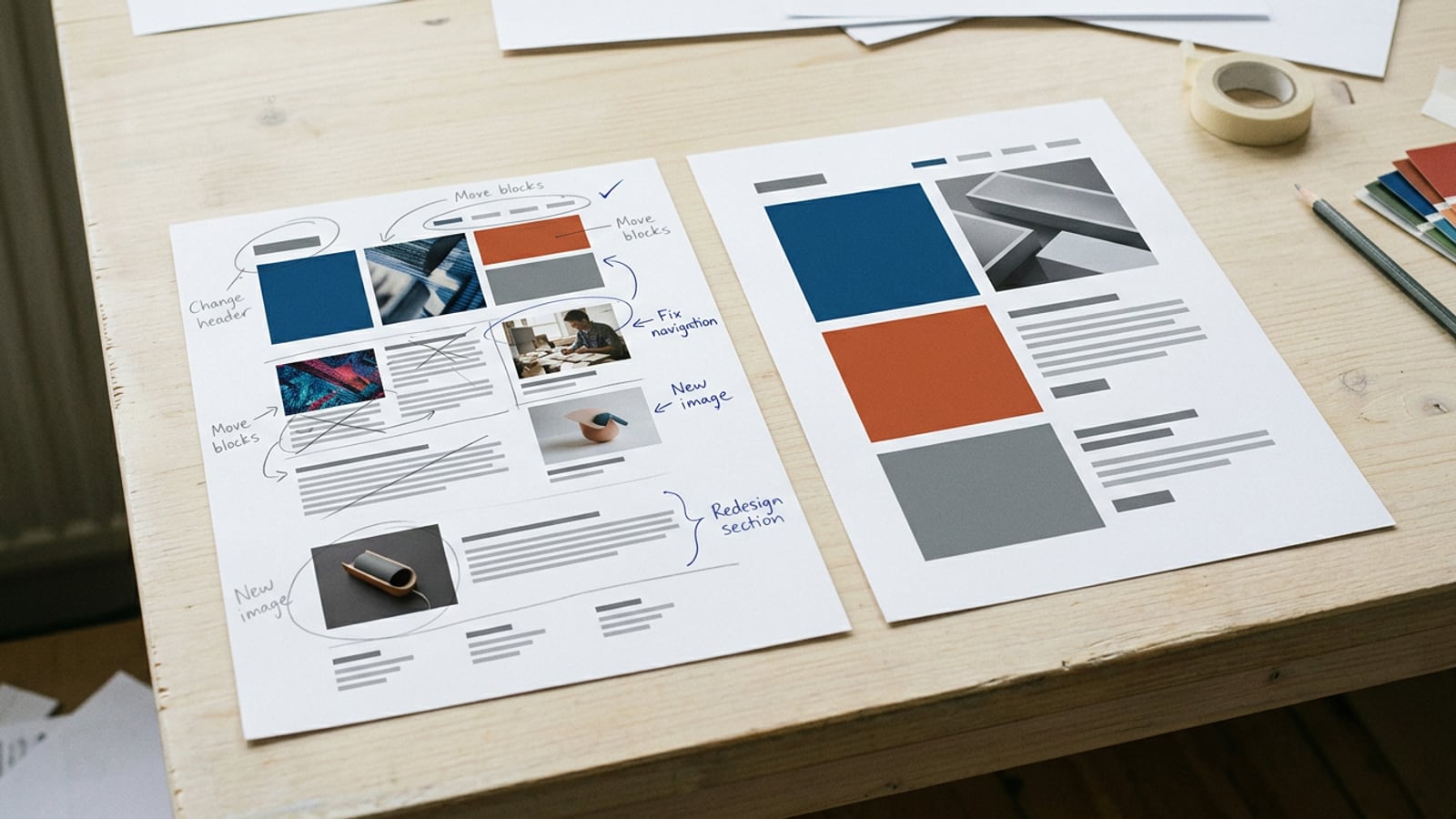
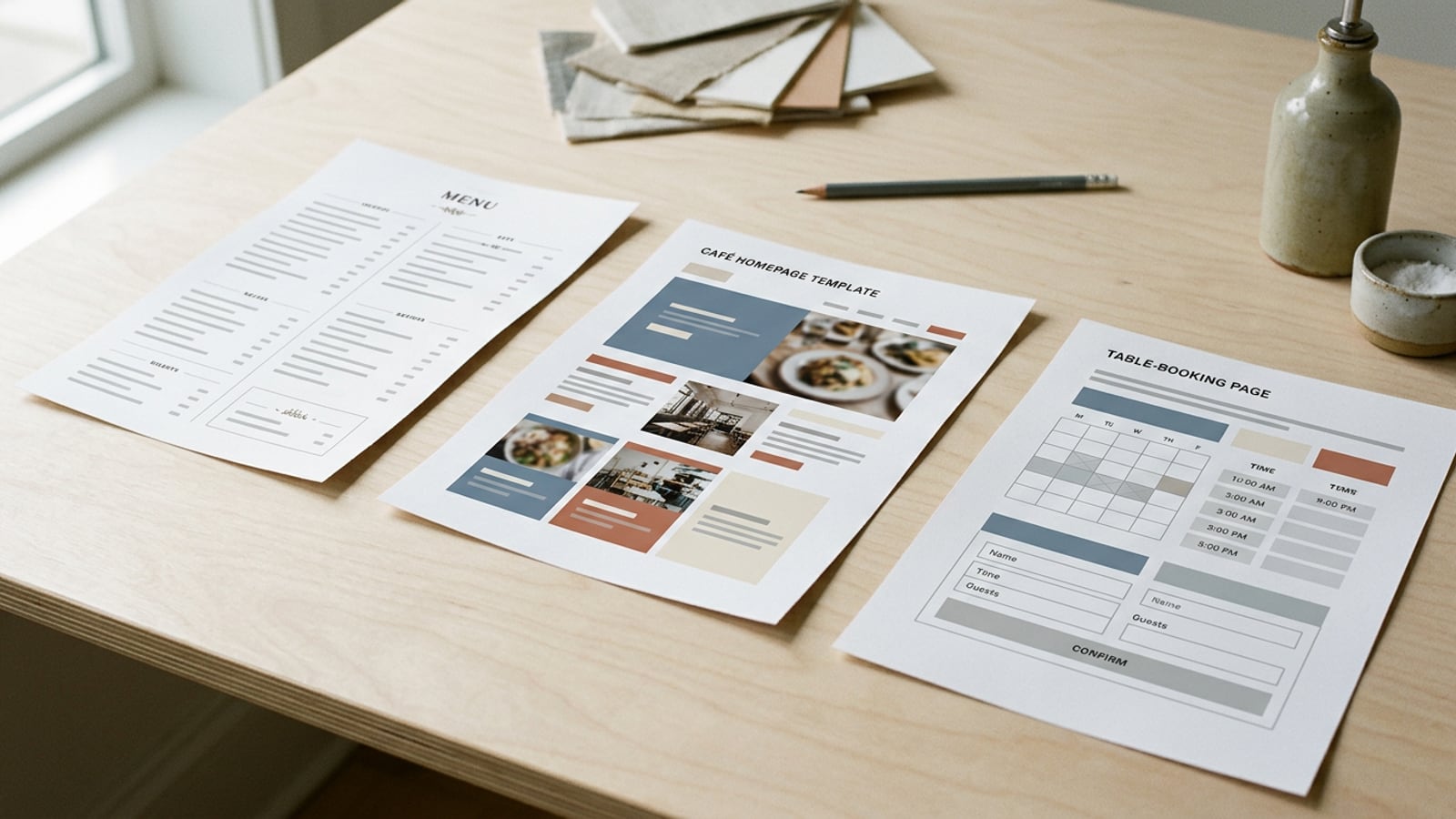
Your site can look finished and still trip up visitors. Before you publish, check that the template looks right with your real content.
Test the site before anyone sees it
Consider a wedding photographer building her portfolio. On her laptop everything looks great, but on her phone the gallery link opens a blank page. She fixes it in minutes, before a single client sees it.
- Test all links. Click every menu item, button, and footer link, and confirm each one goes where you expect.
- Avoid dead ends. Make sure every page gives visitors a next step, like a menu or a link back home, so nobody gets stuck.
- Check mobile responsiveness. Look at the site on a phone, not just your laptop, since that’s where many visitors will see it.
- Test with a few people. Ask two or three friends to find your contact page or a specific product, and watch where they hesitate.
- Fix last-minute problems. List every issue and fix the ones that block a visitor first. If the site isn’t live after you publish, confirm it’s published and your domain is connected, then give it a little time before digging deeper.
Polish your URLs, titles, and branding
- Optimize URLs and titles. Give each page a short, readable URL (its web address, short for uniform resource locator) and a title that describes the page instead of sounding clever.
- Add social media links. Link your profiles so visitors can follow you, and double-check that each one opens the right account.
- Customize your favicon. A favicon is the small icon in a browser tab. Upload your logo or a simple mark so your site stands out among all the open tabs.
Small details, big first impression.
Steps to Make Your Site Public
Going public is the final switch and takes only a few clicks. First, though, get the basics and a fitting plan in place.
Change who can see your site
The switch itself takes three steps:
- Open Settings in your account.
- Find the Site Availability option.
- Set availability to Public.
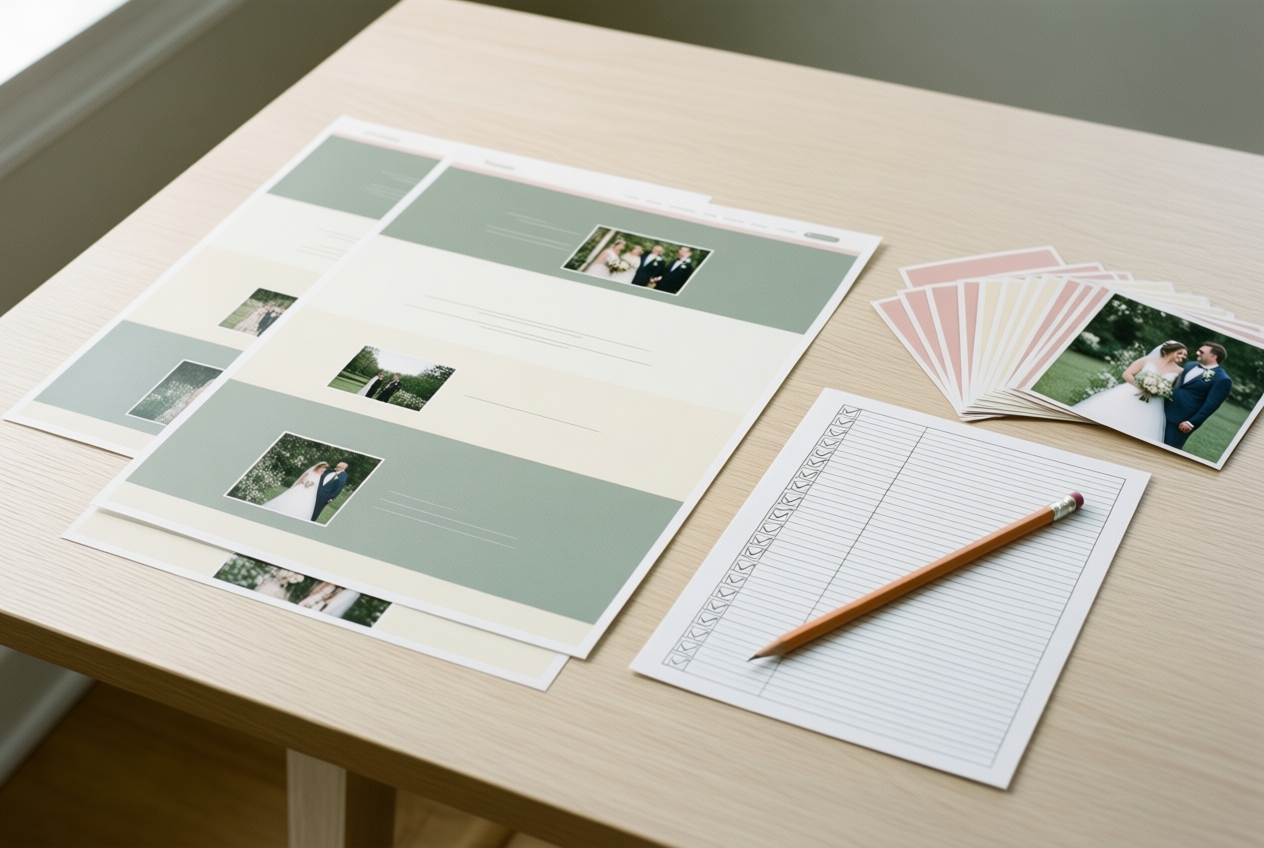
Take a wedding photographer who finishes her portfolio on Sunday night. She waits until her last check passes, so her first visitors see a finished site.
Get the basics ready before publishing
Before that switch, work through this checklist:
- Site settings. Adjust them before launch.
- Domain. Connect a domain, the web address people type to find you.
- Plan. Pick a plan that matches your goals, covered below.
- Pages and assets. Make sure every page and image is ready.
Changes like this don’t always show up the moment you save them, so a florist who connects hers the night before a Mother’s Day sale may find it still not working when orders roll in. Connect early, and build in a buffer.
How much does Squarespace cost?
According to CNBC’s Squarespace review, plans cover everything from personal sites to online stores, and the cost depends on the plan you select.
Setting up a site and running a blog both cost what your plan costs, so compare current pricing for the plan that fits you.
Match the plan to what you need, not what looks cheapest. Squarespace’s Help Center puts it plainly: “Make sure you choose the right plan for the right site.” Before you publish, confirm it supports the features you want.
Don’t assume a trial and a paid site work the same, so check what your paid plan includes before you go public.
Publishing a Squarespace site comes down to a handful of clear decisions: the plan you pick, the domain you connect, the look you’ve checked, and the moment you switch it on. Taken one at a time, the process feels far less daunting than it first appeared.
Your site doesn’t have to be perfect on day one. It just has to be ready for the people you want to reach. The door is unlocked now. Go let them in.
References
- Squarespace Review 2026 — cnbc.com (2025)
- Choose the right Squarespace plan — support.squarespace.com
Questions
What are the limitations of Squarespace?
Squarespace’s main limitations are that features depend on the plan you choose, and the ongoing renewal price may be higher than an introductory offer. It also offers less flexibility for some custom designs and advanced functionality than a fully custom-built site, so check that your plan supports the tools you need before committing.
How much does it cost to set up a website through Squarespace?
The setup cost depends on the Squarespace plan you choose, plus any domain costs that are not included. Compare current plan prices and renewal rates, since the total depends on the features you need and the billing option you select.
How much does it cost to have a blog on Squarespace?
A Squarespace blog does not have a separate setup price: its cost is the price of the plan you use to run the site. Choose a plan that includes the blog features you need, and check its current price and renewal rate.
Which is better, Wix or Squarespace?
Neither Wix nor Squarespace is better for everyone. Compare the design options, features included in the plan you need, and renewal costs, then try both to see which fits your site.
Is Squarespace worth it in 2026?
Squarespace can be worth it in 2026 if its design options and plan features suit your needs and the ongoing price fits your budget. Check current features and renewal pricing before choosing, since the best value depends on what you plan to build.
Who is better, Squarespace or Wix?
Wix and Squarespace each suit different needs, so there is no universal winner. Compare their designs, plan features, and renewal costs, then choose the platform that best fits your website.
Sources
- Squarespace Review 2026, cnbc.com,
- Choose the right Squarespace plan – Squarespace Help Center, support.squarespace.com