WordPress Tags and Categories, Compared Side by Side
WordPress tags connect related posts for readers without cluttering categories. Learn to add and display them, and when to hide tag pages from search results.

In short
WordPress tags are optional, non-hierarchical labels that group posts sharing specific topics, so visitors can find related content across different categories. Use a small, consistent set of relevant tags, reuse existing labels, and keep categories for your site's broad sections; each tag creates an archive page linking its posts. Tags do not directly improve rankings, so decide whether thin archives should be excluded from search results and keep useful ones easy to browse.
Picture your pantry. Categories are the shelves: baking, canned goods, snacks. Tags are the sticky notes on the jars: gluten-free, holiday, kid-approved.
In WordPress, a tag is a keyword label you attach to a post so readers and search tools can find related content. Used well, tags keep your site organized. Used carelessly, they clutter it.
Here we’ll cover what tags are, how they differ from categories, how to add and show them, how they affect search engine optimization (SEO), and when to hide tag pages from search results.
Why WordPress Tags Matter to Your Site
Ever wondered what that tags box in the post editor is really for? It’s easy to skip, but tags quietly shape how readers move around your site.
What tags do for your posts
Tags are keyword-like labels you attach to a post, like “sourdough,” “beginner” or “weeknight dinners.” They name the specific topics inside a post, and one tag can sit on dozens of posts, grouping related content together under a shared label.
What makes tags flat and optional
Tags are non-hierarchical, so they have no parents or children. “Pasta” isn’t a subcategory of “dinner”; every tag sits on the same level. Categories give your site a structure, while tags add description.
The good news is that tags are optional. You can publish with none at all. When you do use them, each tag creates an archive page listing every post that carries it.
Why tagging helps readers find content
Tags work like the index at the back of a book, pointing readers straight to the pages on a topic. A reader who loved one post can click a tag and find a few more without hunting through menus.
Tags also cut across categories: a “Recipes” post and a “Travel” post might both carry “street food,” so one tag links them.
Tagging examples for niche blogs
Here’s how that plays out in real niches:
- Recipe blog: a home cook tags a lasagna post “pasta” and “make-ahead,” so readers can browse by how they cook.
- Gardening and WooCommerce: a plant seller using WooCommerce, the plugin that adds a shop to WordPress, tags care guides “houseplants” and “low light.”
- Cats and pictures: a cat owner tags weekly photo roundups “cat photos” and the cat’s name, so fans can find every picture of their favorite.
- Cooking and tech blogs: the cook tags an air fryer review “kitchen gadgets,” while the tech writer tags it “budget tech.”
Start with five tags per post at most, and reuse the ones you already have. Five well-chosen tags beat fifty you’ll never use again.
How Tags and Categories Differ
Categories and tags both sort your posts, so they’re easy to mix up. Knowing which one does which job keeps your site tidy as it grows.
Where tags and categories differ most
Think of categories as a book’s table of contents: broad chapters that show readers where to start. Tags are more like the index at the back, pointing to specific terms and every page where they appear.
- Scope. Categories are broad, like Recipes or Travel. Tags are specific, like gluten-free or Lisbon.
The two are complementary, not interchangeable. You’ll usually use both, each for its own job.
Structure and rules for each one
Categories can nest. A subcategory sits under a parent, so Desserts can hold Cakes and Cookies beneath it. Tags, by contrast, stay flat.
- Uncategorized is the default. Skip the category step and WordPress files the post there.
- Categories are required, tags optional. Every post needs at least one category, but you can publish with no tags at all.
Choosing between a tag and a category
Start with the big sections of your site and make those your categories.
- Categories for main sections. Pick the handful of topics that organize the whole site.
- Tags for specific keywords. Use them for the details your readers care about.
- Avoid the same word for both. If Recipes is a category, skip it as a tag too. Matching names blur the line between the two and leave you with near-identical archive pages.
Consider a home baker starting her first recipe blog. Her categories are Breakfast, Desserts and Dinner. Her tags include gluten-free. When a reader wants only gluten-free recipes, that tag archive gathers them in one place, whatever meal they belong to.

How each one shapes your URLs
Every category and tag gets its own archive page listing its posts. The web address (URL) of that page tells visitors what kind of page they’re on.
- Default paths. Categories live under /category/ and tags under /tag/, so /tag/gluten-free/ lists every gluten-free post.
- Custom permalink structure. A permalink is a post’s permanent web address. If your settings include the category, post addresses start with it, such as /desserts/cheesecake/.
Those little paths do more talking than you’d expect.
Adding and Managing Your Tags
Adding a tag takes seconds, which is how tag lists get messy. Here’s how we add, create, edit and clean them up, plus a few settings that connect to tags.
How to add a tag in WordPress?
Open a post and find the Tags box in the editor sidebar. As you type, WordPress suggests tags you’ve already used, so pick an existing one instead of making a near-copy.
Separate several tags with commas, and click the X beside any tag to remove it from that post.
A florist writing about Mother’s Day types ‘mother’ and the box suggests her existing ‘Mother’s Day’ tag. She picks it, so her posts stay grouped.
The short answer for pages: they don’t show a Tags box by default, so you can’t tag one the way you tag a post. Turning that on takes extra setup that goes beyond this walkthrough.
Create new tags from the Tags screen
Prefer to set up tags first? Go to Posts > Tags. Enter a name, and WordPress generates a slug, the web-friendly version of that name used in the tag’s web address (URL).
A description is optional, but some themes hide it, so don’t count on visitors seeing yours.
Edit or permanently delete a tag
From the same screen, you can edit a tag’s name or slug. Edits apply across every post that uses the tag, so one fix cleans up the whole site. Removing and deleting aren’t the same.
Removing takes a tag off one post, while deleting removes it from every post. Deletion is permanent, so double-check before you click.
Turning tags into categories and back
Want to switch? The tag-to-category converter is an importer plugin you’ll find under Tools > Import, and it works in both directions. A recipe blogger who tagged every sweet bake ‘dessert’ might decide that’s really a category.
The converter makes the switch without retyping each post.
Other settings tied to your tags
- Default post category. Under Settings > Writing, choose the category WordPress assigns to posts that don’t have one.
- Menus. Add tags to your menu so visitors can browse them. Classic themes use Appearance > Menus, while block themes use the Navigation block, so check which kind yours is.
- 301 redirects. Changing your permalink (the pattern that builds your web addresses) or a tag’s slug breaks old tag links. A 301 redirect is a permanent forwarding rule that sends visitors and search engines to the new address. Don’t skip this one.
How to Use Tags Well
Tags are easy to overdo, so a little restraint goes a long way. Here’s how to keep yours useful and tidy.
Keeping your tag count reasonable
For most posts, three to five tags is plenty. Longer, detailed posts can use five to ten. Keep tags and categories combined at 15 or fewer per post.
Too many tags create clutter, but a study called Limiting Tags Fosters Efficiency found that a limit on tags improved how information was organized and retrieved.
Say you run a small bakery blog. A sourdough post needs three or four tags, like “sourdough,” “baking tips,” and “recipes,” not twelve.
Picking tags that actually help
Good tags name what a reader would actually search for. Aim for specific tags like “sourdough starter,” which says far more than “baking.” Keep a few broad tags, like “recipes,” as doorways into whole sections of your site.
Keep every tag relevant: if it doesn’t describe the post, leave it off. Reuse existing tags before you type a new one. Pick tags that help a reader find something, not tags that just fill a box.

Keeping your tag list tidy
Tags pile up quietly, so schedule a check-up. Watch for duplicate tags like “recipe” and “recipes.” Remove empty or irrelevant tags, and merge or clean up old tags when you spot overlap.
Run a regular audit and check your site stats to see which tags actually draw visitors. A retired teacher starting a book blog might find six tags for one genre after a year. One merge later, her archive makes sense. Tidy beats tangled.
Showing Tags to Your Readers
Tags only help if readers can see them, so here are two simple ways to show them off. How they look depends on your theme, the design you picked for your site.
Adding a tag cloud to your sidebar
A tag cloud is a block of your tags where each one’s font size reflects how often you’ve used it. It’s a default WordPress widget, a small block you drop into areas like the sidebar, so there’s nothing extra to install.
To add it, go to Appearance > Widgets and drag the tag cloud into your sidebar. By default, it shows the 45 most-used tags, so it stays a manageable size as your blog grows.
Picture a florist who blogs about wedding bouquets. Her busiest tags come out biggest, so a bride scanning the sidebar spots “wedding bouquets” fast and clicks straight through.
The cloud shows what she writes about most, not every tag she’s ever made. Less hunting, more clicking.
Placing tags in your navigation menu
Your navigation menu is the list of links visitors use to move around your site. Categories can be added directly to it, while a tag needs a custom link: copy the tag’s web address and enter it yourself.
Say a retired teacher blogs about her garden. She adds her “Gardening Tips” category straight to the menu, then adds the “raised beds” tag as a custom link. Visitors reach either topic in one click.
How Tags Affect Your SEO
Tags won’t lift your rankings on their own, but they shape how visitors and search engines move through your site, and that matters for search engine optimization (SEO).
What tags really do for SEO
Search engines don’t treat tags as a direct ranking factor, so they won’t boost a page alone. Tags improve your site’s structure through internal links between your own pages.
Picture a home baker whose sourdough posts share a tag, so readers click straight to the next one.
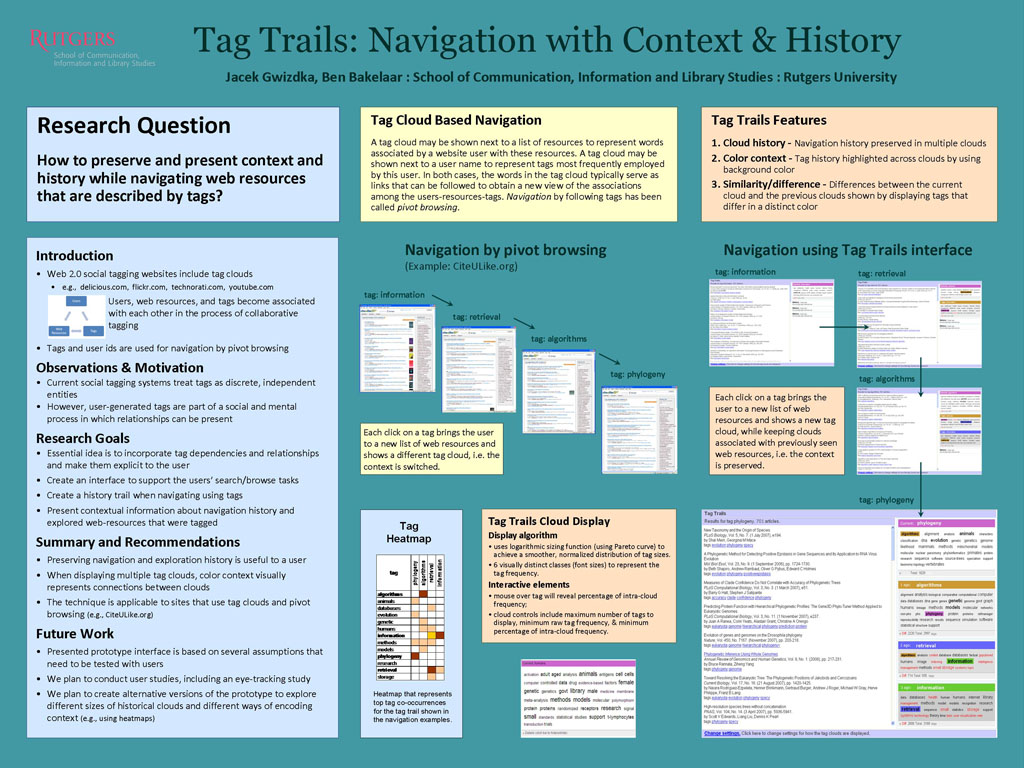
A research poster, Tag trails: Navigating with context and history, notes that tag archive pages can provide internal links that help visitors navigate related content.
Those links can also lower your bounce rate, the share of visitors who leave after one page. Tag archives can even rank in search results.
Don’t confuse WordPress tags with meta tags, which are code in a page’s header that summarizes the page for search engines. WordPress tags are labels you attach to posts.
Alt tags are separate from post tags: in HTML (HyperText Markup Language), the alt attribute describes an image in words for screen readers or when a picture won’t load.

Mistakes that can hurt your SEO
- Overuse. Piling on tags hurts your SEO. Fewer, better tags win.
- Mismatched tags. A florist who tags a holiday arrangement “weddings” gets no benefit.
- Multiple categories. Putting one post in several categories may cause issues.
- Thin tag archives. Near-empty archives are best set to noindex, a setting that keeps them out of search results.
Tags and categories compared for search
Categories help broader keywords, the wide topics people search for, like “baking.” Tags help long-tail terms, the longer, more specific phrases like “gluten-free sourdough starter.”
For SEO, categories get the edge overall, so build your main structure with them and let tags add detail.
Helpful Plugins for Managing Tags
Plugins can cover the fiddly parts of tag management. Here’s what a few options do and what to weigh first.
Meta Tag Manager features
A meta tag is hidden text that tells search engines what a page is about. Plugins like Meta Tag Manager give each tag its own title and description fields.
Picture a bakery blog with a ‘sourdough’ tag: those fields let that tag page say exactly what’s inside. Use them to describe the page, not to stuff it with keywords.
To add a meta tag in WordPress, open the tag’s edit screen; you’ll find the fields your plugin adds there, so fill them in and save.
Yoast SEO for tag optimization
Yoast SEO is a plugin for search engine optimization (SEO), or making your pages easier for search engines to understand.
It sets search titles and descriptions for tag pages and offers a noindex setting, which asks search engines not to list a page. Handy for a tag used on just one post.
Tag Groups display options
Tag Groups changes how tags look to visitors, not what search engines read. Picture a retired teacher’s blog with thirty tags crowding the sidebar. Grouping them into styled sections helps readers find the posts they came for.
Free and pro pricing
Tag Groups comes in free and Pro versions. According to the WordPress.org listing, this one is the free version of PublishPress Tag Groups, so start there.
Upgrade only when you hit a limit you can’t live with, and check the Pro price on the plugin’s site first. Pay for what you need, not what just looks nice.
Tag Questions, Answered
Most first-timers ask the same few things about tags before they publish, including how many to use and whether tags affect search engine optimization (SEO), the practice of getting pages found in search. Here are the answers.
Tag limit per post
There’s no magic number, but specific tags beat many tags. A bakery blogger writing about sourdough might use “sourdough,” “bread baking,” and “beginner baking,” so readers can find the next related post.
Fifteen loose words like “weekend” bury the useful ones. Fewer, sharper tags win.
Tag archive pages and SEO
Each tag gets an archive page listing its posts, and search engines can index them. A tag with one post adds little for a searcher, which is where noindex helps: it asks search engines to leave a page out of their results.
A freelance consultant with one post tagged “client onboarding” is a good candidate.
Spaces in tags
Spaces are fine. “Wedding flowers” reads better to a visitor than “weddingflowers,” so a florist can use them freely. Just give the web address WordPress makes for that tag a quick look once it’s live.
Same word for tag and category
Avoid it. A category is a broad group, like “Recipes,” while a tag is a specific detail, like “gluten-free.” Share one word between them and visitors can land on two pages with the same name, unsure which to click. One word, one home.
Displaying popular tags
Many themes can show your most-used tags in a sidebar or footer, sometimes as a tag cloud, a block sized by how often each appears.
A retired teacher might show five, like “book reviews” and “classroom tips,” so new visitors can jump straight in. Keep it short, though.
Tags work best when they’re few, consistent, and genuinely useful to a reader. Categories give your site its structure, and tags add the detail that helps someone find one more post they’ll love.
Start small, clean up as you go, and decide on purpose whether your tag pages belong in search results. Then keep an eye on how readers move through your site. A handful of well-chosen tags will do more for them than a hundred forgotten ones.
References
- Tag trails: Navigating with context and history — eprints.rclis.org (2009)
- Limiting Tags Fosters Efficiency — doi.org (2021)
- PublishPress Tag Groups: Stylish Displays For Your Tags and Categories – WordPress plugin — wordpress.org
Questions
What are tags and categories in WordPress?
In WordPress, categories are broad, hierarchical groups that organize posts into main sections, while tags are optional, flat labels for specific topics within posts. Both create archive pages that collect posts using that category or tag.
How to add meta tag in WordPress?
To add an SEO meta tag in WordPress, use an SEO plugin such as Yoast SEO or Rank Math, or add the tag through your theme’s header settings if available. Enter the title, description, or other metadata in the relevant plugin field, then save or update the page. Avoid adding the same meta tag through multiple tools.
How do I add an alt attribute to images in WordPress?
In the WordPress editor, select an image and enter its description in the “Alt text” field in the image settings. You can also add or edit alt text by opening the image in the Media Library. Describe the image’s meaningful content; leave alt text blank for purely decorative images when the editor or theme supports that choice.
How do I add a tag to a page in WordPress?
Pages do not have a Tags box by default. To tag a page, you need extra setup, such as a plugin or custom code that enables tags for pages; then you can select or add tags in the page editor.
What are examples of tags?
Examples include “sourdough,” “beginner,” and “weeknight dinners” for posts, or “gluten-free” and “make-ahead” for recipes. Use relevant, specific tags that help readers find related content, and reuse existing tags where possible.
Is WordPress still worth it in 2026?
Yes, WordPress can still be worth using in 2026 if it fits your site’s needs. It offers flexible content management and a large plugin and theme ecosystem, but you should weigh maintenance, security, performance, and hosting against simpler hosted platforms.
What does the alt tag do in HTML?
The HTML alt attribute provides a text description of an image. Screen readers use it to convey the image’s meaning, and browsers may show it if the image cannot load.
Are alt tags important for SEO?
Yes. Useful alt text improves accessibility by communicating image content to people using screen readers, and it can help search engines understand images. Describe the image accurately and avoid stuffing it with keywords.
Sources
- Tag trails: Navigating with context and history, eprints.rclis.org,
- Limiting Tags Fosters Efficiency, doi.org,
- PublishPress Tag Groups: Stylish Displays For Your Tags and Categories – WordPress plugin | WordPress.org, wordpress.org