How to choose a website template: a first-timer’s checklist
Choose a website template by its look, then test it with your own photos and your longest page, open it on your phone and add up what year two costs.
In short
Shortlist three templates whose demos already look like the site you have in mind, then test each one with your own photos, your longest page and your phone. Before you commit, add up what it costs in year two and check whether the platform lets you switch templates later.
The quickest way to choose a website template is to decide what the site is for and how it should feel, shortlist three templates whose demos already look close, then test each one with your own photos, your longest page and your phone. Before you commit, add up what it costs in the second year and find out whether the platform lets you switch later. Words like “responsive” and “SEO-friendly” hardly come into it: nearly every template promises both, so they don’t tell one from another.
Start with what the site is for
Finish the sentence “From the homepage, a visitor should be able to…”. A café’s might be “see the menu and the hours, and book a table”; a photographer’s, “see the work and get in touch”; a shop’s, “find a product and buy it”.
That sentence decides which pages the site needs and which button sits at the top, and it rules templates out fast. A shop template puts a cart in the header and a product grid on the homepage; a portfolio template gives most of the page to pictures. Start from one built for a different job and you spend an afternoon taking things out.
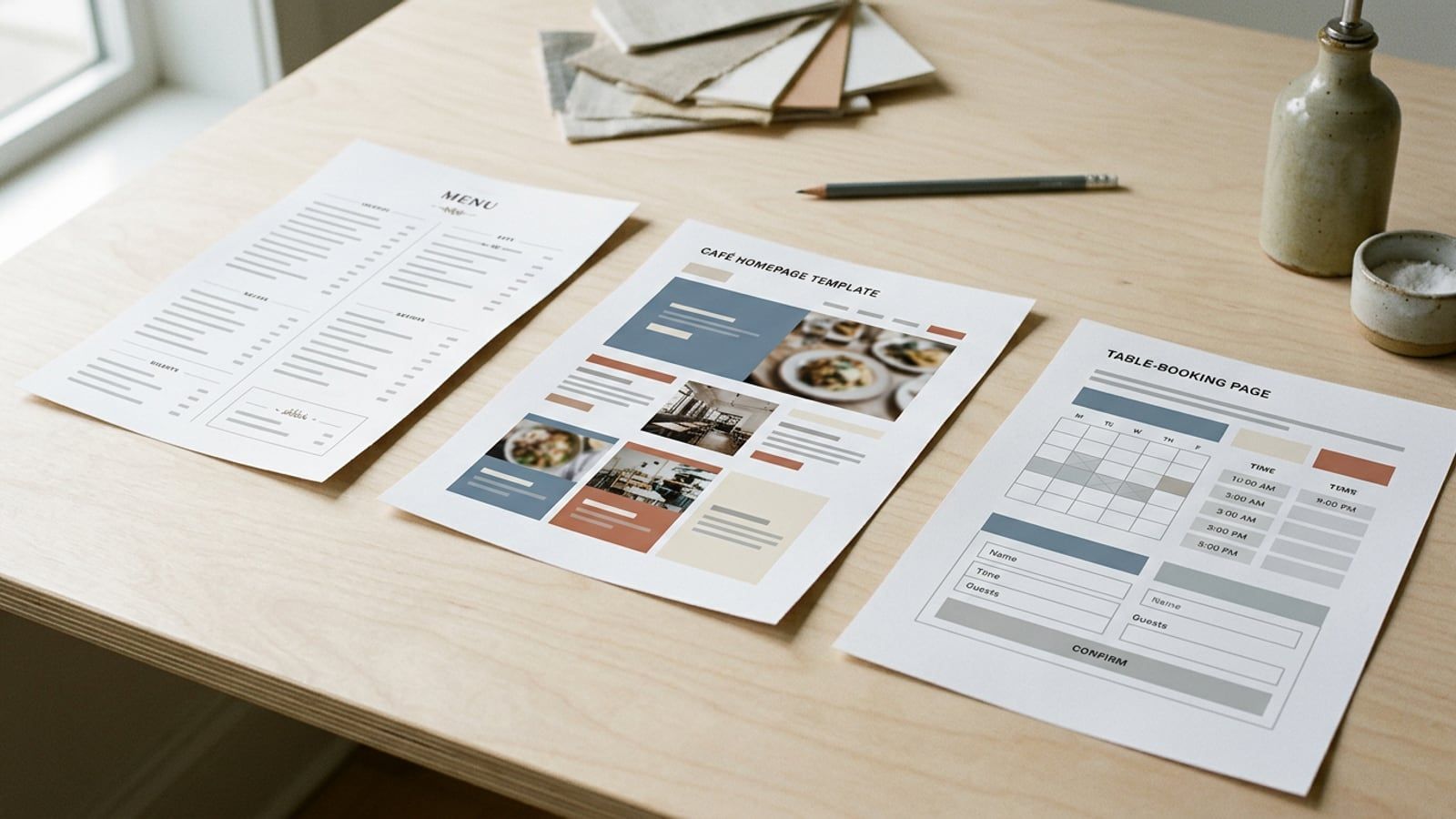
A template made for your kind of business is a head start, not a requirement: a restaurant template with one big photo, a menu page and a booking button can become a florist’s with new photos and words. If you run a restaurant, café or bakery, five restaurant templates and what each costs a year sets the options side by side.
Choose the feel before the features
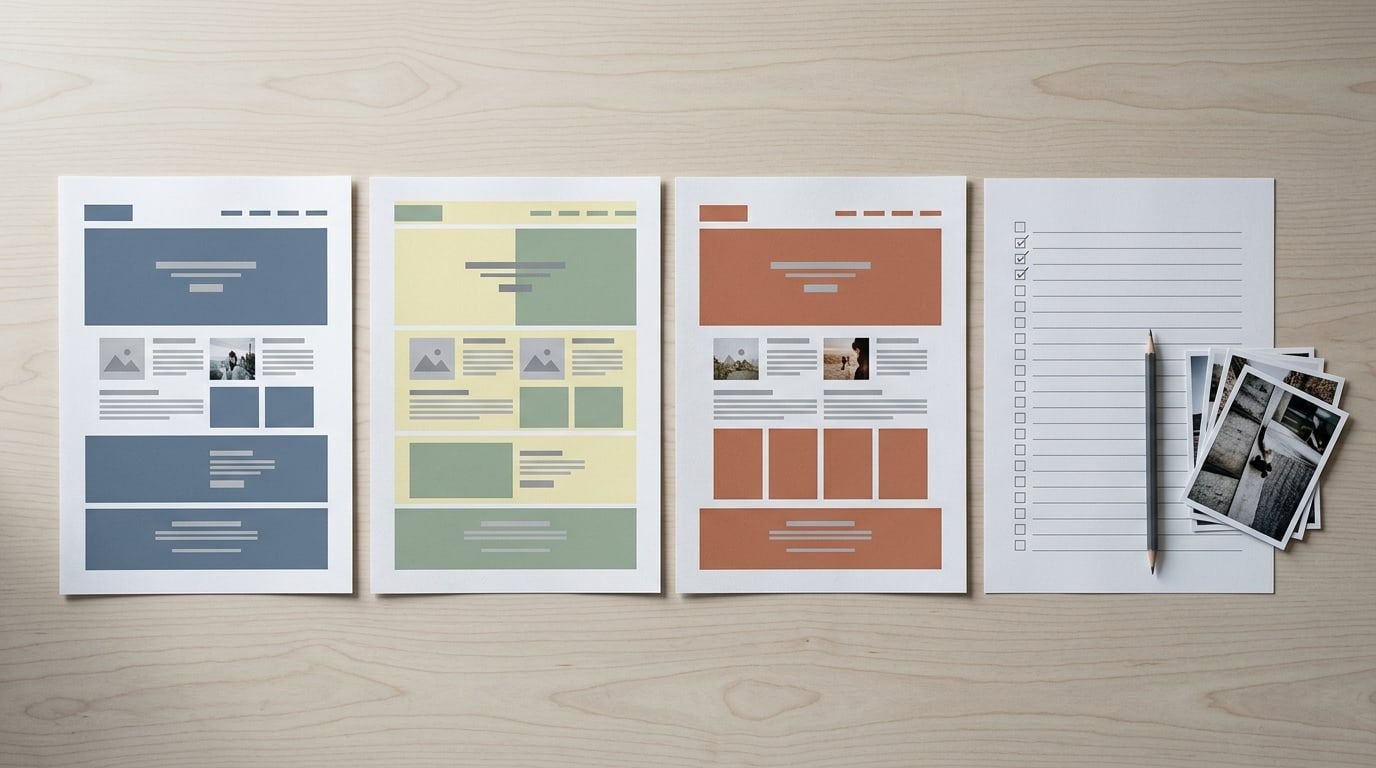
The feel is the part of the site you’ll live with longest. Most templates fall into one of four:
- Calm and minimal: plenty of white space, a few large photos, quiet type.
- Warm and friendly: softer colors, photos of people, rounded shapes.
- Bold and modern: big type, strong color, tight blocks of content.
- Classic and elegant: serif headings, restrained color, generous margins.
Take the feel from how the business already looks: the sign, the menu card, the room. Then browse only templates in that feel; you’ll see a fraction of the gallery and decide faster. Theme Match asks what the site is for and how it should feel before anything else, then returns three templates across WordPress, Squarespace, Wix and Shopify with what each costs every year.
Picture the demo with your own photos and words
A demo is built with professional photographs and short, tidy text. Yours will have your photos and your words, and that gap is where most templates disappoint. Test each one on your shortlist:
- Gather the five photos you’ll really use: the homepage photo, two of your work or your place, a portrait, and a product or a dish.
- Compare their shape with the demo’s. If its top photo is wide and yours are tall phone shots, the template will crop them, sometimes through someone’s head.
- Compare their light. A template built around bright, airy pictures looks gloomy with dim interior shots.
- Write the headline you’d actually use. If the demo’s has four words and yours has fifteen, picture how it wraps.
- Find your longest page, often the services list or the menu, and the demo page that would hold it. A layout made for three short paragraphs turns long text into a wall.
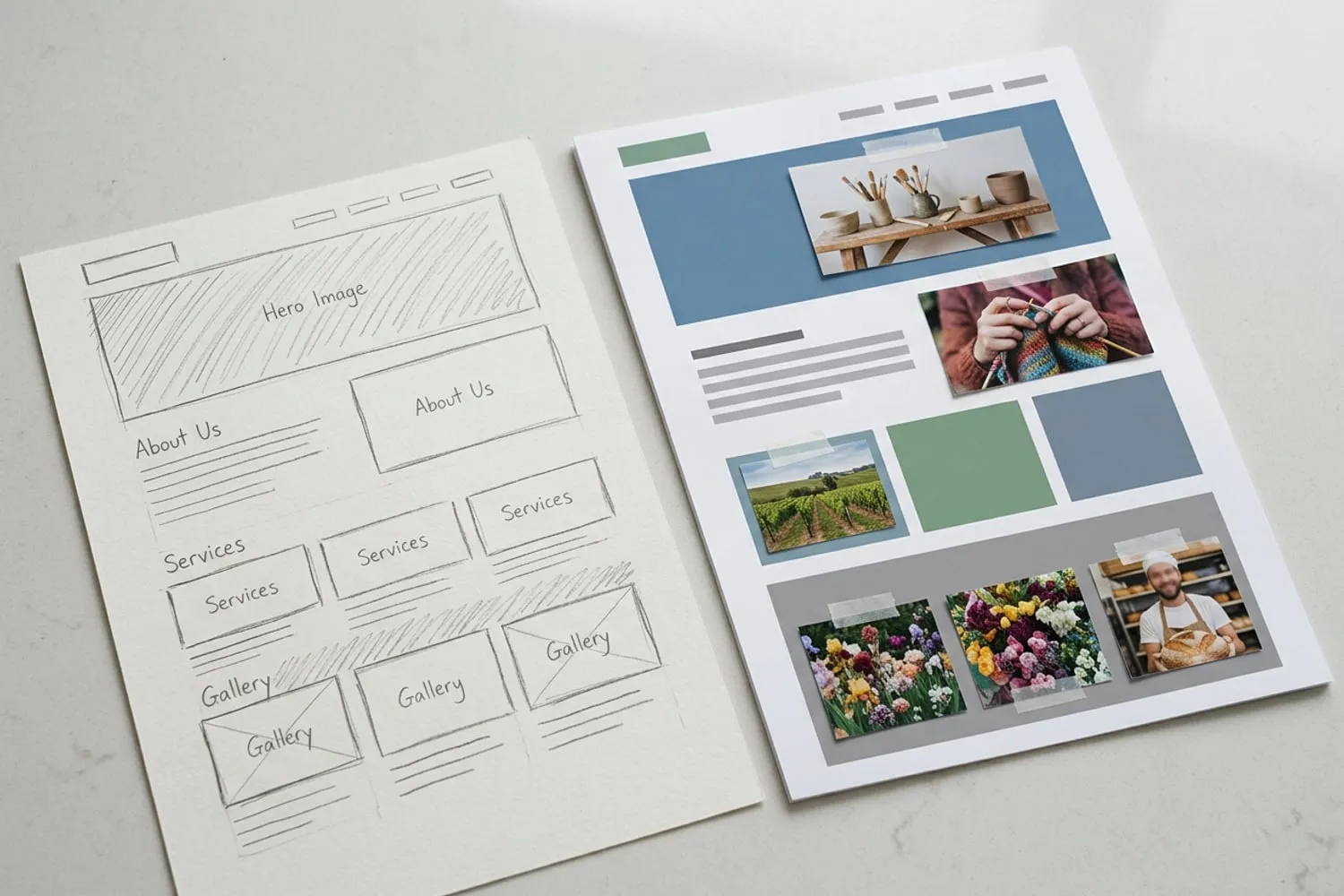
Where you can, try it for real. WordPress’s Live Preview shows a theme with your own posts and pages before you activate it, and Shopify lets you try a theme in your store with your own products. Squarespace starts every site with a 14-day free trial and Wix has a free plan, so you can start a site from the template and drop your photos in.
Tip: demos come with star ratings, testimonials, “As featured in” logos and sample figures you don’t have yet. Delete them or replace them with real ones before launch, because visitors will take them as yours.
Count the pages and sections you’ll actually use
A template with forty page layouts is no better than one with six if you need five. List the pages your site needs on day one (for most small businesses: home, about, what you offer, contact, perhaps a blog or a shop) and match each one to a page in the demo.
- Pages the demo lacks are the ones you’ll design yourself. One is fine; three means the template was made for a different kind of site.
- Sections you can’t fill, such as a team grid, testimonials or pricing tables, get deleted, and the page left behind can look lopsided.
- Features you need, such as booking, a shop or a newsletter sign-up: check whether the demo has them working or only shows a button. On many templates “Book now” is a button you connect to a booking service yourself, and that service may send its own bill.
Open the demo on your phone
Plenty of visitors will meet the site on a phone, so judge the template there. Send yourself the demo link and check:
- the menu: easy to find, opens cleanly, every page in it;
- the top of the homepage: the photo still works cropped narrow, and the headline reads without zooming;
- the button that matters (book, buy, call): visible without much scrolling;
- the body text: comfortable at arm’s length;
- a long page: the sections stack in a sensible order.
Wix’s template pages have a mobile view button, but your own phone in your hand is the honest test.
Make sure you can change the fonts and colors
All four big platforms let you change colors and fonts without code: Site styles on Squarespace, the Site Design panel on Wix, Theme settings in Shopify’s theme editor, and on WordPress the Styles panel in the Site Editor for a block theme or the Customizer for a classic one. What differs is how far a template lets you go. Check that colors are set once for the whole site, that you can choose fonts freely, and that the demo still looks right in your colors: some templates are built around one strong color and fall flat without it.
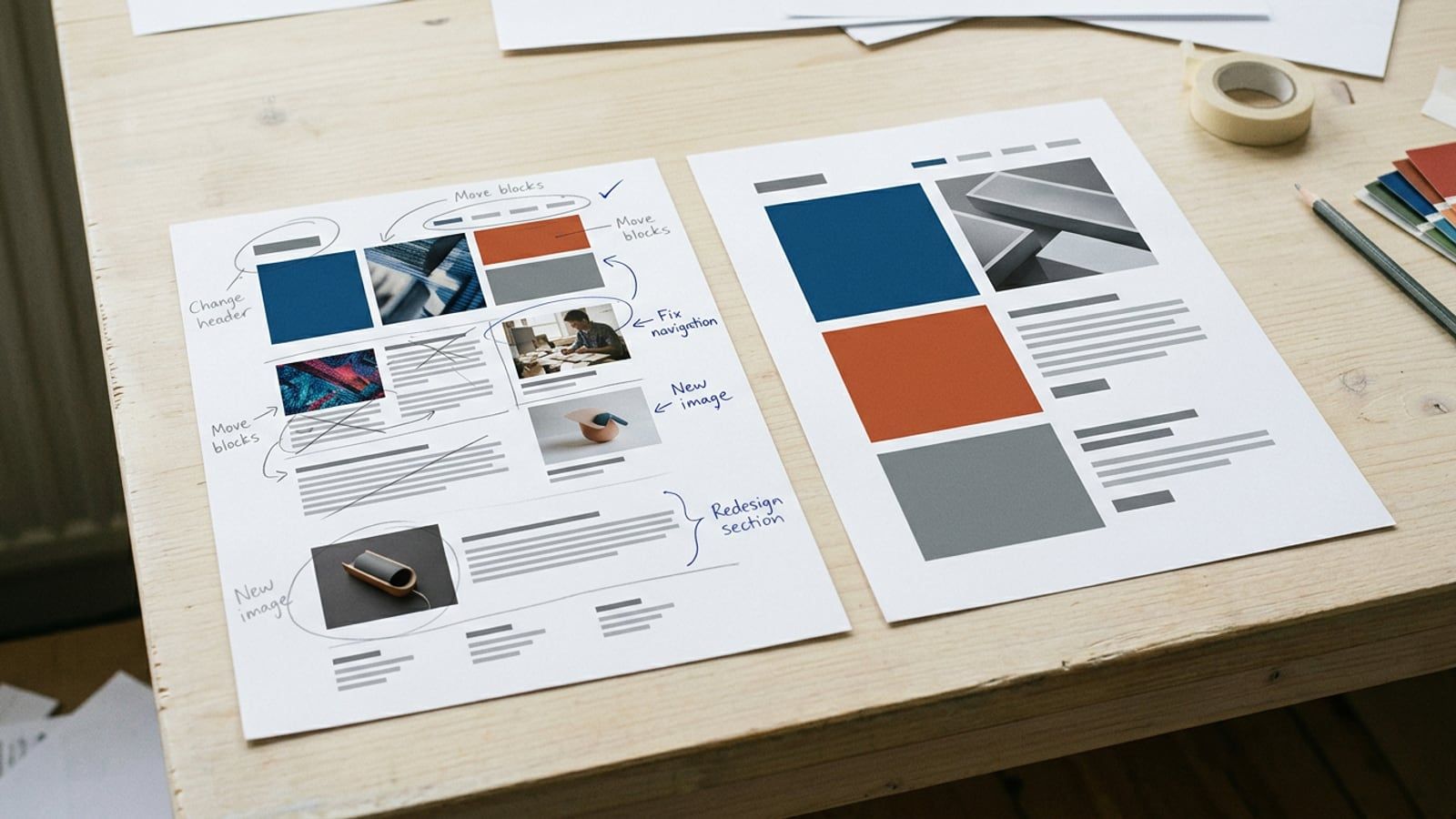
If you’re planning to change the fonts, the colors and the layout, you’ve picked the wrong template. Start from one that’s already close.
Add up what it costs in year two
The template is often free. The bill is the plan or the hosting, the domain and sometimes the theme, and much of it rises in year two, when the free domain year and the introductory hosting prices end. Six common starting points, counted the way Theme Match counts them (US dollars on yearly billing, rounded to the nearest $10):
| Starting point | Year one | Every year after | What changes in year two |
|---|---|---|---|
| Squarespace template, Basic plan | about $230 | about $250 | The domain, free in year one, renews |
| Wix template, Light plan | about $200 | about $220 | The domain, free in year one, renews |
| Shopify free theme, Basic plan | about $370 | about $370 | Nothing, unless you add paid apps |
| Shopify paid theme at $400 once, Basic plan | about $770 | about $370 | The theme was paid for once |
| WordPress, free theme, shared hosting | about $50 | about $150 | Hosting renews at its regular price |
| WordPress, Divi at $89 a year, shared hosting | about $140 | about $240 | Hosting renews, and Divi every year |
A template with bookings or a store built in can raise the bill further: taking payments on Wix needs Core, about $145 a year more than Light, and on Squarespace’s Basic plan a 2% fee comes off each product sale. Card fees, email at your own domain and paid apps aren’t in these figures at all; what a website costs per year adds up the whole bill, line by line.
Find out whether you can switch later
This is the check most people skip, and the hardest to undo:
| Platform | Can you switch templates later? | What that means for you |
|---|---|---|
| WordPress | Yes | Posts, pages and media stay; menus, widgets and pages built with the old theme’s own builder may need redoing |
| Shopify | Yes | Products, collections and pages stay; you set up the homepage sections again in the new theme |
| Squarespace 7.1 | There’s nothing to switch to | Every 7.1 site has the same features and style options, so you change the look with styles and sections |
| Wix | No | A new template means a new site: the plan and domain move across, the content is copied and the design rebuilt |
Squarespace says all version 7.1 sites are part of the same template family, so a redesign there means restyling. Wix is just as plain that an existing site can’t switch to a different template: you start a new site and move the plan and domain to it, and the design, the store and the bookings stay behind. So on Wix, choose the template you’d still like in two years. If those two are your shortlist, Squarespace vs Wix compares them, including the choices you can’t take back.
Free or paid: when a paid theme earns its price
Squarespace and Wix templates come with the plan, and Shopify’s own themes are free. The question is real on WordPress, and on Shopify once you look at other makers’ themes.
A free theme is enough for most first sites: the WordPress.org theme directory lists more than 8,000, each reviewed by the WordPress themes team against its rules before it appears. A paid theme earns its price when it has a layout you’d otherwise have to build (a lookbook for a fashion label, a menu set out like the printed one), when its starter site (the ready-made demo you import and make your own) already matches most of your pages, or when you want the maker’s support and updates. Before paying, check:
- Yearly or once. Divi is $89 a year or $249 once; Shopify Theme Store themes such as Prestige, at $400, are paid once.
- What stops if you stop paying. Elegant Themes says you can keep using the Divi you’ve downloaded, but updates and support end.
- Refunds. Elegant Themes refunds within 30 days. Paid themes from the Shopify Theme Store are final sale, which is why Shopify’s trial matters: you can try a paid theme in your own store with your own products, and you pay only when you want to publish it.
- The last update. A theme its maker hasn’t touched in a long while may fall behind its platform.
The themes and page builders we’d start a first site from, each with its price after the first year, are on the Tools page.
The checklist on one screen
- Finish the sentence: from the homepage, a visitor should be able to…
- Choose the feel, then shortlist three templates whose demos look close.
- Picture each with your five real photos, your real headline and your longest page.
- Match your pages to the demo’s; plan to delete every sample review, logo and figure.
- Open the demo on your phone.
- Check you can set colors and fonts for the whole site.
- Add up year one and year two, with the plan you’d need for bookings or payments.
- Find out whether the platform lets you switch later.
- For a paid theme: yearly or once, what stops if you stop paying, refunds, the last update.
More roundups by kind of site, from portfolios to shops, are in the Themes section.
Questions
Should I choose a template made for my kind of business?
It helps, because the pages and buttons you need are usually there already, such as a menu page and a booking button on a restaurant template. But the layout matters more than the label: a template built for another kind of business works well once its pages match yours and your photos suit it. Judge it by your own pictures and your own list of pages, not by the demo’s category.
Is a free template good enough for a business site?
Yes, for most first sites. Every Squarespace and Wix template comes with the plan, Shopify’s own themes are free, and a free WordPress theme such as Astra or Twenty Twenty-Five can carry a whole small-business site. Pay for a theme when it has a layout you would otherwise have to build, or when you want the maker’s support and updates.
Can I change my template after the site is live?
On WordPress and Shopify, yes: your content stays, though menus, widgets and homepage sections may need setting up again. On Squarespace 7.1 there is no template to switch to, because every site has the same features, so you restyle the fonts, colors and sections instead. On Wix an existing site can’t change templates; a new look means a new site, with your plan and domain moved across.
Does the template I choose affect SEO?
Less than most people fear. Search engines rank pages for what they say and how useful they are, not for the template. A template can still get in the way: heavy sliders and oversized photos slow a page down on a phone, and a one-page design gives each service no page of its own to be found by. Choose one that loads quickly on your phone and lets you add a page per service.
Sources
- Understanding Squarespace templates, Squarespace Help Center,
- Switching Your Site Template, Wix Help Center
- Adding, previewing, and buying themes, Shopify Help Center
- Work with themes, WordPress.org Documentation,