Font pairing for websites: how to choose two fonts
Choose a body font for reading and a heading font for the feel, set the sizes, then test both on your own homepage. Eight free Google Fonts pairs to start.
In short
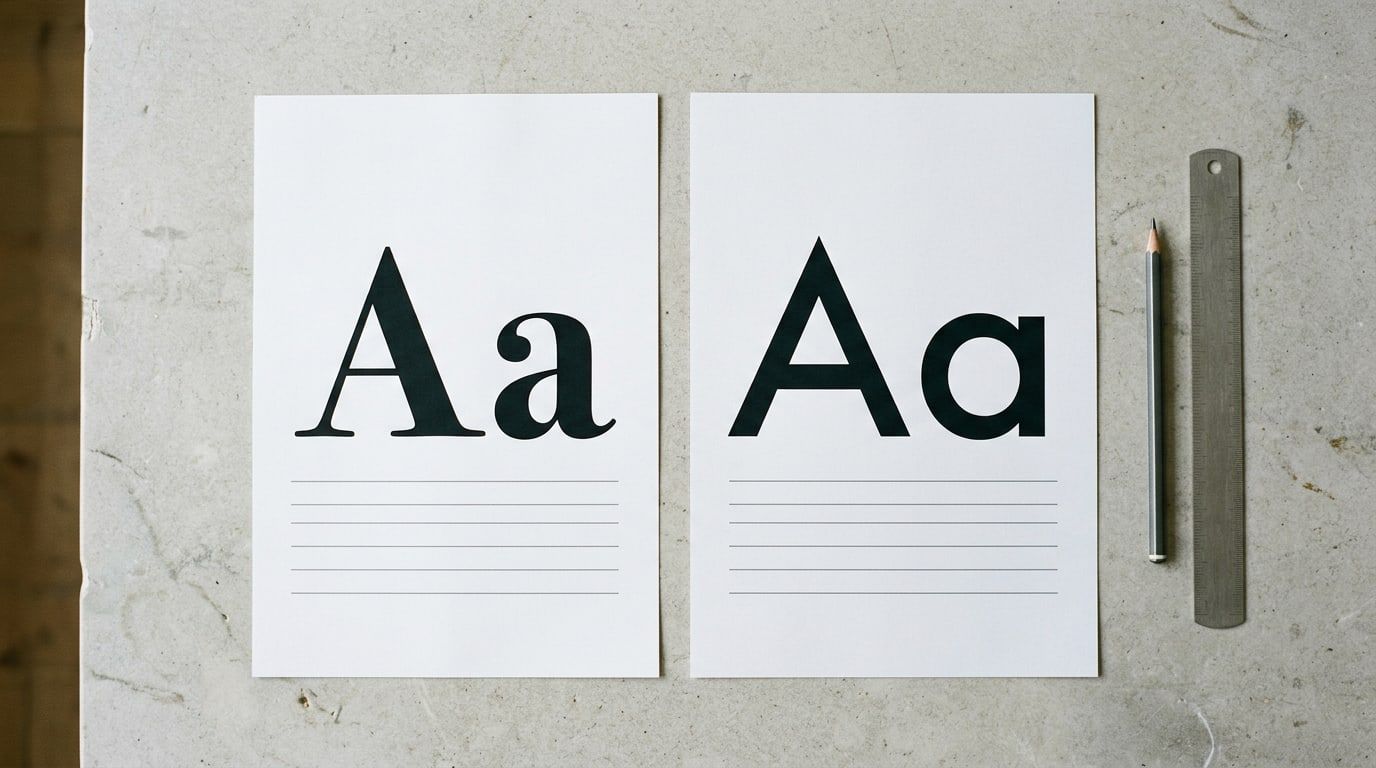
Choose the body font first, a plain, open face that reads well at 16 to 18 pixels on a phone, then a heading font that gives the site its feel and is clearly different from it; a serif with a sans serif is the easiest way to get that difference. Two fonts are enough for almost any small-business site, and the real test is your own homepage on your own phone.
Give each font one job. Choose the body font first, for reading: a plain, open face that stays clear at 16 to 18 pixels on a phone. Then choose the heading font for the feel, one that is clearly different from the body font; the easiest way to get that difference is a serif paired with a sans serif. Set the sizes, try the pair on your own homepage, and change it once in your theme’s font settings so it applies everywhere. Below is the method, eight free pairs sorted by how you want the site to feel, and where the settings live on Squarespace, Wix, Shopify and WordPress.
Two fonts, two jobs
The heading font is the site’s voice: it sets the feel in the few large words people see first. The body font does the reading, carrying every paragraph, so it has to stay comfortable for a whole page on a small screen.
Most small-business sites need two fonts, and some need only one: Google Fonts’ guide to pairing typefaces starts by asking whether you need a second font at all, since weight, size and capitals can already set headings apart. When you do pair two, the hard part is the contrast: different enough to tell apart at a glance, not so different that they argue. The same guide quotes the designer Jason Santa Maria’s advice for when in doubt: pair a serif with a sans serif.
Three ways to get the contrast right:
- A serif with a sans serif. Serif headings over sans serif text, or the other way round. The hardest pairing to get wrong.
- One family in two weights. Inter Semibold headings over Inter Regular text, for example. Tidy, calm and quick to set up.
- Fonts drawn as a set. Source Serif 4 was designed to go with Source Sans 3, with matching letter proportions, so they sit together naturally.
And two to avoid: two fonts that are nearly alike, such as two plain geometric sans serifs, which look like a mistake rather than a choice; and two showy display fonts, which compete for the same attention.
Choose the body font for reading
Most of the words on your site are body text, so start there. A good body font:
- was drawn for text, not for posters, with open letters and a generous x-height (the height of the lowercase letters);
- has a real italic and a bold, so emphasis doesn’t come out as a fake slanted or smeared version;
- keeps similar letters apart: type “Illinois 1l” and check you can tell the capital I, the lowercase l and the number 1 apart;
- has clear numbers, if you show prices, opening hours or a phone number;
- covers the accents you use, such as the é in café or the ñ in jalapeño.
Safe sans serif choices on Google Fonts include Inter, Source Sans 3, Work Sans, DM Sans and Nunito Sans. If you want a serif for reading, Source Serif 4, Lora and Merriweather were all made for text on screens.
Choose the heading font for the feel
Headings are short and large, so this is where a font can have character: a high-contrast serif, a soft old-style face, a heavy sans. Judge it at the size you’ll use it, around 32 to 48 pixels, and check the capitals and numbers if prices or years appear in your headings.
Two things to watch. Some display fonts come in a single weight (DM Serif Display and Archivo Black do), fine for headings and no use for paragraphs. And very fine display faces, such as Cormorant Garamond, turn thin and faint at paragraph size, so keep them in headings.
Pairs that work, by feel
Theme Match sorts themes by four feels, and these pairs follow the same four. Every font here is free on Google Fonts; three of them aren’t in Shopify’s font library, and the platform section below gives the nearest choice there.
| Feel | Headings | Body text | Why it works |
|---|---|---|---|
| Calm and minimal | Brygada 1918 | Inter | A quiet text serif over a plain sans with a tall x-height, made for screens |
| Calm and minimal | Source Serif 4 | Source Sans 3 | Designed as companions, with matching proportions |
| Warm and friendly | DM Serif Display | Work Sans | A big, generous serif for headlines; Work Sans is tuned for on-screen text |
| Warm and friendly | Fraunces | Nunito Sans | A soft, old-style display serif over an easygoing sans |
| Bold and modern | Space Grotesk | Inter | Headings with a few quirky letters; Inter keeps the paragraphs plain |
| Bold and modern | Archivo Black | Archivo | One heavy weight for headlines, the same family for text, so the letters match |
| Classic and elegant | Playfair Display | Source Sans 3 | High-contrast serif with delicate hairlines, made for large sizes; a clean sans that stays quiet |
| Classic and elegant | Cormorant Garamond | Lato | A fine, Garamond-style display face; Lato stays unobtrusive in paragraphs |
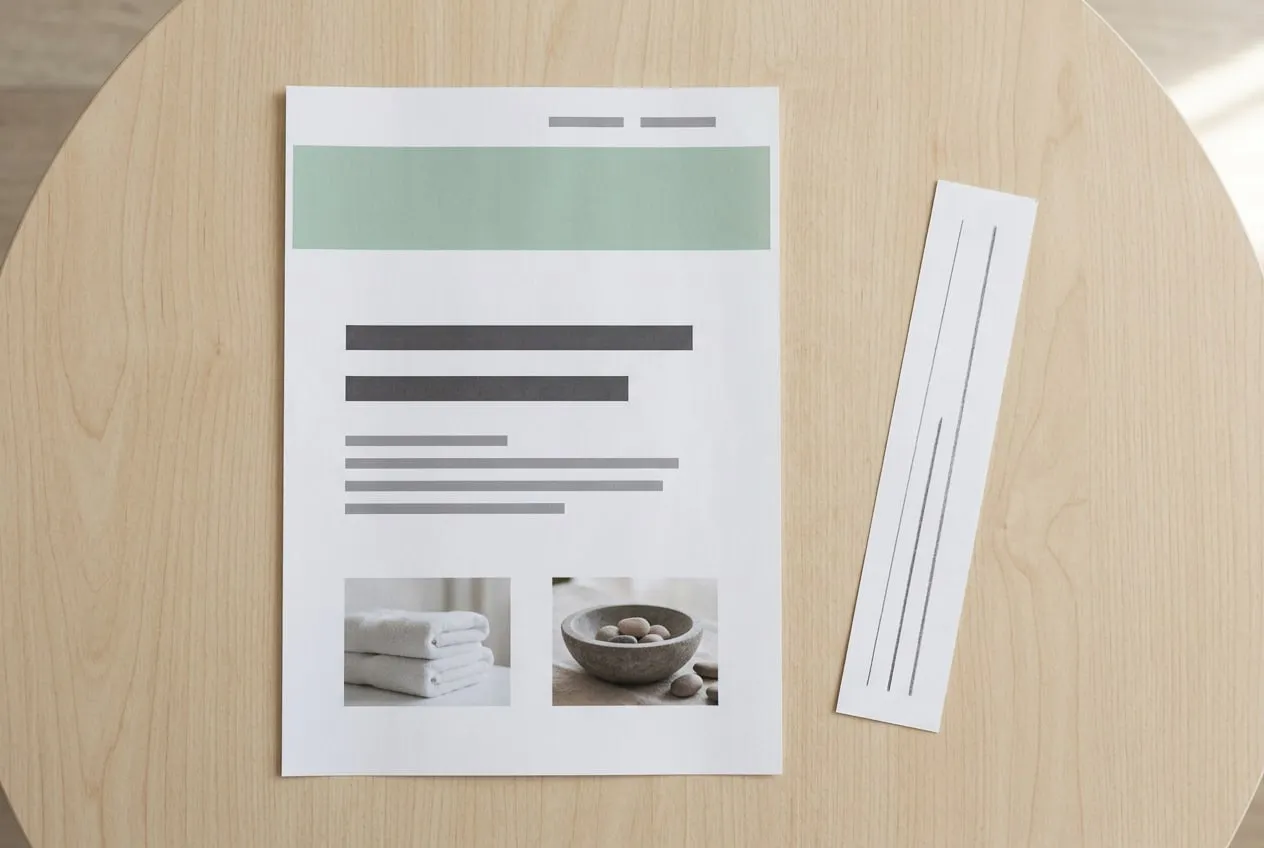
The first pair is the one in the Lotus Spa starter site, a free Astra theme demo in Theme Match: Brygada 1918 headings over Inter text, with soft photographs and a Book Now button. If your template already uses a pair you like, keep it; these are for when the default doesn’t fit your business.
Sizes, weights and line spacing to set
These are common starting points, not rules, and your font may need a nudge either way:
| Setting | Starting point | Why |
|---|---|---|
| Body text size | 16 to 18px on phone and desktop | 16px is the usual browser default; small lowercase letters need more |
| Body line height | 1.5 to 1.7 times the text size | Long paragraphs need room between lines |
| Line length | About 45 to 75 characters | The range book typographers have long used; longer lines tire the eye |
| Body weight | Regular (400), bold at 600 or 700 | Light weights turn faint on phone screens |
| Main heading (H1) | About 2 to 2.5 times the body size | Clear on desktop; check it doesn’t break into five lines on a phone |
| Section headings (H2) | About 1.4 to 1.6 times the body size | Big enough to scan by, small enough to stay below the H1 |
| Heading line height | 1.1 to 1.3 | Large type looks loose with paragraph spacing |
Whatever you set, leave room for visitors who change it. WCAG’s text spacing criterion asks that nothing gets cut off when someone raises line height to 1.5 times the font size and paragraph spacing to twice it. When a page fails that test, the usual culprit is custom CSS that fixes the height of a box.
Try the pair on your own homepage
A pair that looks right in a specimen can look wrong with your words, which is the same lesson as choosing a website template: test with your own content, not the demo’s.
- Try the pair before the site launches, or on a duplicate of the theme if it’s already live.
- Put in your real business name, your longest headline and your longest paragraph.
- Open it on your phone. Read a whole paragraph at arm’s length, and check that the longest heading wraps neatly.
- Look at the letters that give a font away, which the type designer Octavio Pardo, in a Google Fonts guide, names as the a, the g and the numbers. Then check your prices and phone number.
- Check the buttons and the menu, which often take the body font in capitals or bold.
- Hold it next to your logo. The heading font should clearly match the logo’s lettering or clearly differ from it; a near miss looks like a mistake.
Colors sit in the same panel on most platforms, so settle them now too: how to choose a color palette for your website gives each color a job the same way.
Where to change fonts on your platform
Change fonts in the site-wide settings, never paragraph by paragraph, so one change updates every page.
| Platform | Where the setting lives | Worth knowing |
|---|---|---|
| Squarespace (7.1) | Site styles > Fonts, then Headings and Paragraphs | Font packs set a pair at once; about 600 Google fonts are in its library, not all |
| Wix (Wix Editor) | Site Design > Text theme > Heading Font and Paragraph Font | Each heading and paragraph style can be adjusted after; you can upload your own fonts |
| Shopify | Online Store > Edit theme > Theme settings > Typography, then Headings or Body | Fonts come from Shopify’s library of system fonts and selected Google fonts |
| WordPress block theme | Appearance > Editor > Styles > Typography | The Font Library (WordPress 6.5 and later) installs Google Fonts onto your own site |
| WordPress classic | Appearance > Customize, if the theme offers font settings | Some classic themes have few font options; the theme’s documentation says which |
Squarespace’s help page on choosing and styling fonts shows how to search beyond the recommended packs. If your pair isn’t in your platform’s list, Squarespace, Wix and WordPress let you upload font files you’re licensed to use; otherwise pick the nearest font that is there.
Shopify’s font picker offers only its own library, and adding another font means editing the theme’s code. Three fonts from the pairs above aren’t in it. For Source Sans 3, choose Source Sans Pro, its earlier version; for Cormorant Garamond, choose Cormorant, the family it belongs to; and in place of Brygada 1918, Source Serif 4 is a quiet text serif that is in the library.
Tip: once you’ve settled, write down the exact font names, weights and sizes. You’ll want them again for the logo, social media posts and anything you print, such as menus or price lists.
Free fonts and their licenses
Every family on Google Fonts is open source and free to use on a website, a commercial one included. Most are under the SIL Open Font License, which allows use on websites and in logos. What it doesn’t allow is selling the font files on their own, and the pages and documents you make with the font don’t fall under the license.
Outside Google Fonts, read before you download. Fonts labeled “free for personal use” usually rule out a business site, and a desktop license for print often doesn’t cover putting the font on a website. Squarespace, for one, asks that you have the font owner’s permission before you upload it.
On WordPress, fonts installed through the Font Library are copied onto your own site, so visitors’ browsers load them from you, not from Google.
Google Fonts and Coolors, a free palette tool, are both on the Tools page. For more on making a site look right without a designer, see the Web Design section.
Questions
How many fonts should a website use?
Two is enough for almost every small-business site: one for headings and one for body text. One family in two weights works too. Add a third only for a job the other two can’t do, and remember that every extra font or weight is another file each visitor’s phone has to download.
Should body text be serif or sans serif?
Either reads well on today’s screens if the font was drawn for text and set at a comfortable size. A sans serif is the safe default for short pages and small sizes. A serif made for reading, such as Source Serif 4, Lora or Merriweather, suits long articles and stories. Choose by the feel you want, then check it on your phone.
What size should body text be on a website?
16 to 18 pixels is the usual starting point, and 16 pixels is the usual browser default when a site sets nothing. WCAG sets no minimum size, but it does ask that visitors can enlarge text and widen its spacing without breaking the page. Fonts with small lowercase letters may need 18 pixels or more to read as easily.
Can I use any font I find online on my website?
No. A font is software with a license, and many fonts sold for print need a separate web license, while fonts marked free for personal use usually rule out a business site. Every family on Google Fonts is free to use on any website, including a business one, under an open license, most often the SIL Open Font License. For anything else, read the license before you upload the font to your builder.
Sources
- Pairing typefaces, Google Fonts Knowledge
- Understanding Success Criterion 1.4.12: Text Spacing, W3C Web Accessibility Initiative
- Choose and style your site’s fonts, Squarespace Help Center
- Font library: available fonts, Shopify Dev Docs
- The SIL Open Font License, SIL International