Email Signature Size Guide: Dimensions, Limits and Display
Email signature size keeps logos sharp on laptops and phones. Get target dimensions, file limits, and tips for how apps display signatures differently.
In short
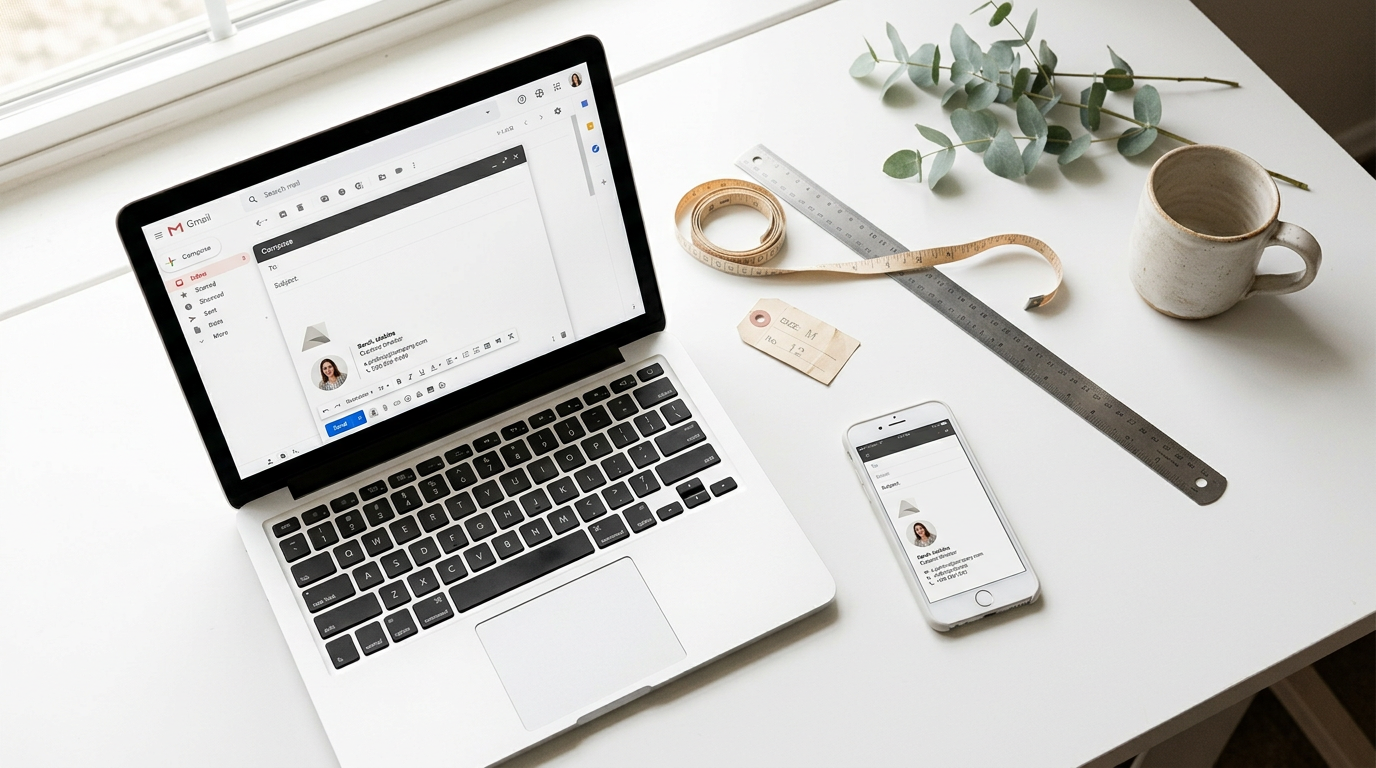
An email signature is the block of your name, contact details, and optional images at the bottom of an email. Keep it concise and light, prioritize readable text, use only a few appropriately sized images, and design for narrow phone screens before checking larger displays. Test it on a phone and computer in different email apps, because images and formatting can look different or may not appear at all.
Picture sending a quote to a new client and seeing your logo fill half the screen. That’s the mismatch a good email signature size guide prevents. An email signature is the block of logo, name, and contact details at the bottom of every message you send.
Getting the size right keeps your signature sharp on a laptop, stops it from stretching on a phone, and keeps your emails light.
We’ll cover the dimensions to aim for, how to shrink the file, and how phones and email apps show the same signature differently.
Getting the Right Email Signature Size
Size keeps your signature sharp on a laptop and easy to read on a phone. Here’s what to aim for, plus steps for adding your images.
Overall size of your signature and images
According to Google’s Gmail Help guidance, a signature image should be 70-100 pixels (px) high by 300-400 px wide. For a generic signature, a width of 300-600 px is a safe target. Keep every image within the maximums in the sections below.
To set an image as your signature:
- Open the signature settings in your email app.
- Insert the image into the signature box, placing it where you want it.
- Resize it to fit the ranges above, then send yourself a test email.
How big your logo should be
Keep your logo between 100 and 300 px wide. Then save it at 2X resolution, meaning twice its display size, so it stays crisp on high-resolution screens. Set the resolution to 72 dpi (dots per inch) for screen use.
Logo height depends on the shape of your mark, so check that it sits comfortably beside your text.
Sizing banners and social icons
A banner should be no larger than 600x100 px, and social icons work well at about 22 px. An oblong banner, wide rather than tall, also works best on mobile.
To add a banner:
- Save your banner at 600x100 px or smaller.
- Insert it into your signature settings where you want it to appear.
- Add a link if the banner should lead somewhere, then send a test email and check it on your phone.
How many images to include
One or two images is usually plenty, since more starts to look cluttered. Think of a bakery owner who adds her logo, a holiday ordering banner, a row of social icons and a storefront photo. Her phone number gets lost in the pile.
Keep the logo and one banner, then type the phone number and address as text so customers can read and copy them. Two images, tops.
Staying Within File and Character Limits
Your signature has two limits to watch: how heavy your images are and how many characters Gmail allows. A few smart choices keep you inside both, and we’ll cover them below.
Keeping image files light
Keep files small, since heavy images make a signature slower to load and easier to push past limits. Compress your image before you insert it, and resize it to the size it will actually display.
Size targets vary by platform, so treat any single number as a rough guide. The one to remember is 200 KB (kilobytes): keep any animated GIF (Graphics Interchange Format) under that.
Consider a bakery owner who wants her cake logo in every email. She shrinks it to the size it’ll show at and compresses it before inserting, so her signature stays light and she’s far less likely to hit Gmail’s limit.

Which image format to choose
Choose the format by the job, not by habit:
- PNG (Portable Network Graphics) for logos. It supports transparent backgrounds.
- JPEG (Joint Photographic Experts Group) for photos.
- GIF also works, especially for animation.
A transparent background can look fine in one spot and odd in another, so send yourself a test email before you commit.
Next, decide where the image lives. An embedded image sits inside the signature itself, while a hosted image is pulled in from a web address. If you host your logo, keep it at a stable address on your own website so the link doesn’t break.
Working around Gmail’s character limit
Gmail caps a signature at 10,000 characters, and Gmail’s help page on creating a signature notes that your image counts toward that character limit too, so a large picture eats into your text budget.
If Gmail won’t accept your signature, resize the image first, before you cut any of your text.
How long your signature should be
No vendor recommends a length, so you’ll make the call yourself. A sensible target is four to six lines. Consider a freelance consultant whose signature holds a name, a job title, a phone number and one website link.
That’s four lines, and each one earns its place. Shorter is better.
How Phones and Email Apps Differ
Your signature won’t look the same everywhere, since phones, desktops and email apps each handle size and images differently.
Sizing for phones and desktops
A phone screen is often around 320 px wide (px means pixels, the tiny dots that make up an image), while a desktop can show up to 600 px. A width of roughly 450 px is a practical compromise between them.
That’s why we recommend mobile-first design: build for the narrow screen, then check the wide one. In dark mode, a logo with a white background can look like a box, so test it on a dark screen before you commit.
Changing your signature on mobile
A change on your laptop doesn’t always reach your phone. Gmail’s mobile app can keep a different signature from the one on desktop. The iPhone Mail app shows text only, so a logo you added on your computer won’t appear there.
Outlook’s roaming signatures can follow you across devices, but sync has limits, so check each device after a change. Picture a freelance consultant who perfects a banner on her laptop, then finds plain text on her phone.
One check per device spares her that surprise.
Where Gmail and Outlook behave differently
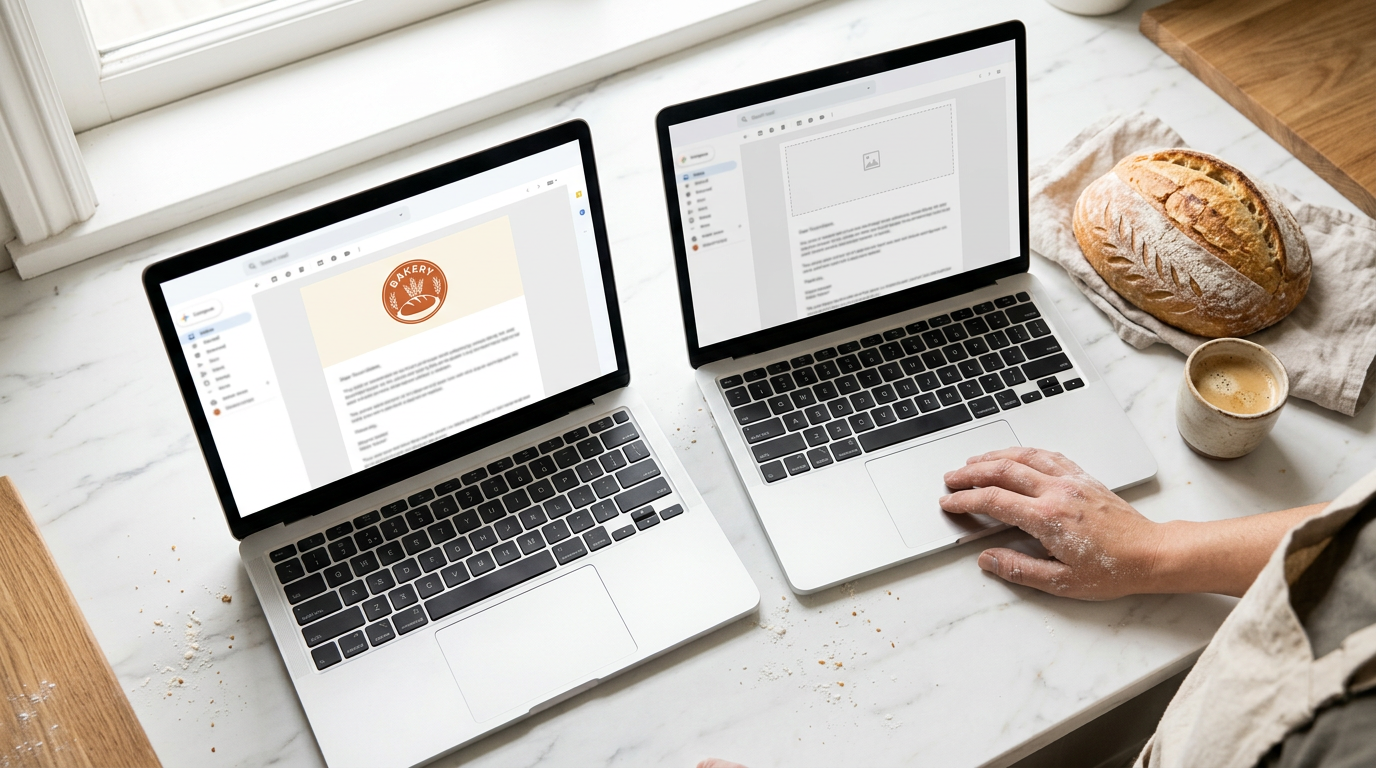
Gmail shows images automatically, so your logo appears as soon as someone opens your email. Outlook blocks images by default, so readers may see an empty space until they allow them.
Each client sizes things a little differently, so treat these numbers as a starting point. If a bakery owner runs a shop address and a personal one, giving each account its own signature keeps the bakery logo off personal emails.
Why is my email signature picture so big?
Usually the image went in at its full original size. A photo straight from a camera is far wider than any signature needs, and email apps won’t shrink it for you. Here’s how to fix it:
- Gmail: select the image, then choose small, medium or large.
- Outlook: drag a corner handle to resize it.
- Lock the aspect ratio (the balance of width to height) so your logo doesn’t stretch as you drag.
- Edit the HTML in Word: for exact pixel widths. It’s more advanced, so try a simple resize first.
Resize the image, then check it on both your phone and your laptop before you call it done. Smaller usually wins.
Content and Design Tips That Work
Less is usually more. Here’s what to include, how to keep a team consistent, and which mistakes to dodge.
Must-have details and optional extras
Your reader needs the basics first:
- Name, title, company, and contact: the core details every reader needs.
- Social links: a few icons for the places you actually post.
- Call to action: one clear invitation, like “Book a discovery call.”
- Pronouns, quote, and disclaimer: optional extras, only if they serve the reader.
Consider a freelance consultant who adds one call to action under her name. The next step is obvious to every reader, and the goal is clarity over decoration.
Keeping your brand look consistent
Consistency matters even more across a team.
- Uniform sizing across the team: everyone uses the same logo width and signature size.
- Brand guidelines: the rules for your logo, colors, and fonts, applied to your signature too.
- Limited colors and fonts: one or two brand colors and your website’s font.
- Refreshed images: swap in a current logo or photo periodically.
Picture a church office where three staffers each design their own signature, one with a bright red banner and another with a huge photo. Matching sizes and fonts makes the office look organized to everyone who writes in. Small matches add up.
Ready-made templates and generators
These shortcuts do the heavy lifting:
- Copyable signature templates: ready-made layouts you fill in with your details.
- Signature generator tools: online forms that build a finished signature for you to copy.
- Built-in best practices: good templates already use sensible sizing and spacing.
Think of a retired teacher starting a tutoring business. She types her name, subject, and phone number into a generator, pastes the result into her email settings, and she’s done before dinner. The shortcut is smart, but test it first.
Common signature mistakes to avoid
These four slip-ups make even a good design look messy:
- Employees customizing sizes: resized logos stop the team’s emails from matching.
- Too many images: each one adds weight, so one logo is usually enough.
- Stale social icons: a link to a network you’ve abandoned sends readers nowhere.
- Untested animation: moving graphics can behave differently in other email apps, so send a test first.
Each fix takes one careful look.
How Signatures Affect Delivery and Speed
Your signature rides along on every message, so a heavy one slows everything down. Here’s what file size does on the other end.
What big images do to your emails
Picture a freelance photographer who adds a full-size logo, a banner and a headshot to her signature. Every message now carries all three files.
Slow loading comes first: a heavy message takes longer to appear, especially on a phone with a patchy connection. Spam folder risk is next, since a message that’s mostly picture and light on text can resemble the junk filters catch.
And lower recipient engagement follows, because people are less likely to click or reply when mail feels slow. Lighter files get read. The aim is clear, not crowded.

Simple ways to tune your signature
Start with the aspect ratio, the balance of a picture’s width to its height. Drag a corner to resize a logo, never a side, so it doesn’t stretch.
Add alt text, a short written description that shows in place of a picture that won’t load, so your name still comes through.
Watch your text-to-image ratio, the balance of words to pictures: a name, title, email and one small logo beats a full-width banner with a paragraph of tagline. Then test across clients.
An email client is the app you read mail in, like a phone mail app or a desktop program, and signatures can look different in each. A church secretary’s banner might look crisp on her laptop yet get cropped on her phone, so she checks both first.
Last, email yourself a test first and open it on your phone and computer to spot stretched logos or awkward breaks.
Legal Details Your Signature Might Need
Some signatures need more than a name and a phone number. Here’s what the law may ask you to add, so you can check it before your first email goes out.
What the law asks you to include
Start with the CAN-SPAM Act, the US law that covers commercial email.
It expects marketing messages to include a valid postal address, so a candle maker sending a sale announcement to a customer list needs a real mailing address in the signature or footer.
A home-based freelancer may feel uneasy about sharing a home address, so check what the rule accepts before you decide what to list.
If you run a business in the UK or Germany, your local rules may ask for more. These often cover company details such as your registered name, business address and registration number.
Germany in particular has a detailed requirement, so look up the exact wording for your country rather than guessing.
A disclaimer is a short line of legal text at the bottom of an email. It’s optional for many small senders but advised for others. A consultant whose emails could be read as professional advice is a good example.
Keep it to a sentence or two so it doesn’t swamp the rest of your signature.
The rule is simple: what the law asks for comes before what looks nice. Check first, then design.
Your signature is a small detail that does a lot of work. Getting the size right means it looks professional on a laptop, reads cleanly on a phone, and doesn’t weigh down your messages.
Before you call it finished, send yourself a test, check it on your phone, and open it in a second email app. A few minutes of checking now saves awkward moments later.
Get the size right once, and every email you send carries your name with confidence.
References
- Troubleshoot issues with Gmail signatures — support.google.com
- Create a Gmail signature - Computer — support.google.com
Questions
What is the best way to format an email signature?
Use a short, readable signature with your name, title, company, and contact details, usually across four to six lines. Add only useful extras, such as one logo, a social link, or a clear call to action, and test it on a phone and computer.
What is the recommended size for an email banner in 2026?
Keep an email banner at 600 × 100 pixels or smaller in 2026. A wide, short banner is easier to view on mobile; compress it and check how it appears on different devices.
What are the dimensions for an email signature graphic?
A signature image should generally be 70–100 pixels high and 300–400 pixels wide. For a logo, aim for 100–300 pixels wide, and keep a banner at 600 × 100 pixels or smaller.
How to resize logo for email signature?
Resize the logo to 100–300 pixels wide before inserting it, and save it at twice its displayed dimensions for sharper results on high-resolution screens. Use a tool that preserves the aspect ratio so the logo does not stretch, then compress the file and test it in an email.
How do I add a banner to an email signature?
Save the banner at 600 × 100 pixels or smaller, open your email signature settings, and insert it where you want it to appear. Add a link if needed, then send a test email and check it on both a phone and computer.
How do I adjust the image size in my Outlook email signature?
In Outlook, open your signature settings, select the image, and drag a corner handle inward to resize it while preserving its proportions. Send a test email and check the result on your phone and computer, since Outlook may display images differently across devices.
How to set an image as an email signature?
Open the signature settings in your email app, insert the image into the signature box, and place it where you want it. Resize it to fit, then send yourself a test email; a signature image around 70–100 pixels high and 300–400 pixels wide is a useful target.
Why is my email signature picture so big?
Your picture is probably displaying at its original size, which may be much larger than a signature needs. Resize it in the email app or before inserting it, preserve its aspect ratio, and check the result on a phone and computer.
Sources
- Create a Gmail signature - Computer - Gmail Help, support.google.com
- Troubleshoot issues with Gmail signatures - Gmail Help, support.google.com